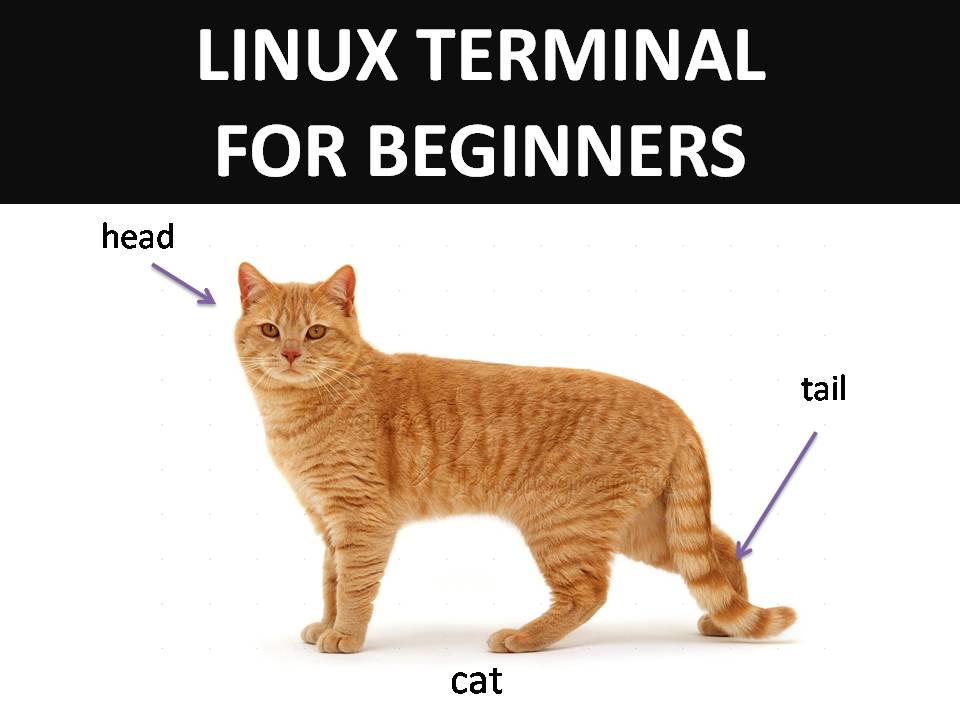
"the MANliest way to learn linux"
-Mental Outlaw
When navigating the Linux terminal, the most easy and effective way to learn commands as a newbie is by utilizing the manual pages, commonly known as "man pages." These comprehensive resources provide detailed documentation for every command, including its syntax, options, and examples of usage, making them an invaluable tool for both beginners and experienced users.
By simply typing the command:
man [command]
you gain instant access to information about the command you introduced
Here are some examples of man pages of the most useful commands you will use in linux:
sudo
sudo(8) - Linux man page Name sudo, sudoedit - execute a command as another user Synopsis sudo -h | -K | -k | -V sudo -v [-AknS] [-g group name | #gid] [-p prompt] [-u user name | #uid] sudo -l[l] [-AknS] [-g group name | #gid] [-p prompt] [-U user name] [-u user name | #uid] [command] sudo [-AbEHnPS] [-C fd] [-g group name | #gid] [-p prompt] [-r role] [-t type] [-u user name | #uid] [VAR=value] -i | -s [command] sudoedit [-AnS] [-C fd] [-g group name | #gid] [-p prompt] [-u user name | #uid] file ... Description sudo allows a permitted user to execute a command as the superuser or another user, as specified by the security policy. sudo supports a plugin architecture for security policies and input/output logging. Third parties can develop and distribute their own policy and I/O logging plugins to work seamlessly with the sudo front end. The default security policy is sudoers, which is configured via the file /etc/sudoers, or via LDAP. See the PLUGINS section for more information. The security policy determines what privileges, if any, a user has to run sudo. The policy may require that users authenticate themselves with a password or another authentication mechanism. If authentication is required, sudo will exit if the user's password is not entered within a configurable time limit. This limit is policy-specific; the default password prompt timeout for the sudoers security policy is 5 minutes. Security policies may support credential caching to allow the user to run sudo again for a period of time without requiring authentication. The sudoers policy caches credentials for 5 minutes, unless overridden in sudoers(5). By running sudo with the -v option, a user can update the cached credentials without running a command. When invoked as sudoedit, the -e option (described below), is implied. Security policies may log successful and failed attempts to use sudo. If an I/O plugin is configured, the running command's input and output may be logged as well. The options are as follows: -A' Normally, if sudo requires a password, it will read itfrom the user's terminal. If the -A (askpass) option isspecified, a (possibly graphical) helper program is executedto read the user's password and output the password to thestandard output. If the SUDO_ASKPASS environment variable isset, it specifies the path to the helper program. Otherwise,if /etc/sudo.conf contains a line specifying the askpassprogram, that value will be used. For example: # Path to askpass helper program Path askpass /usr/X11R6/bin/ssh-askpass If no askpass program is available, sudo will exit with an error. -b' The -b (background) option tells sudo to run the givencommand in the background. Note that if you use the -boption you cannot use shell job control to manipulate theprocess. Most interactive commands will fail to workproperly in background mode. -C fd' Normally, sudo will close all open file descriptors other than standard input, standard output and standard error. The -C (close from) option allows the user to specify a starting point above the standard error (file descriptor three). Values less than three are not permitted. The security policy may restrict the user's ability to use the -C option. The sudoers policy only permits use of the -C option when the administrator has enabled the closefrom_override option. -E' The -E (preserve environment) option indicates to the security policy that the user wishes to preserve their existing environment variables. The security policy may return an error if the -E option is specified and the user does not have permission to preserve the environment. -e' The -e (edit) option indicates that, instead of running a command, the user wishes to edit one or more files. In lieu of a command, the string "sudoedit" is used when consulting the security policy. If the user is authorized by the policy, the following steps are taken: 1. Temporary copies are made of the files to be edited with the owner set to the invoking user. 2. The editor specified by the policy is run to edit the temporary files. The sudoers policy uses the SUDO_EDITOR, VISUAL and EDITOR environment variables (in that order). If none of SUDO_EDITOR, VISUAL or EDITOR are set, the first program listed in the editor sudoers(5) option is used. 3. If they have been modified, the temporary files are copied back to their original location and the temporary versions are removed. If the specified file does not exist, it will be created. Note that unlike most commands run by sudo, the editor is run with the invoking user's environment unmodified. If, for some reason, sudo is unable to update a file with its edited version, the user will receive a warning and the edited copy will remain in a temporary file. -g group' Normally, sudo runs a command with the primary group set to the one specified by the password database for the user the command is being run as (by default, root). The -g (group) option causes sudo to run the command with the primary group set to group instead. To specify a gid instead of a group name, use #gid. When running commands as a gid, many shells require that the '#' be escaped with a backslash ('\'). If no -u option is specified, the command will be run as the invoking user (not root). In either case, the primary group will be set to group. -H' The -H (HOME) option requests that the security policy set the HOME environment variable to the home directory of the target user (root by default) as specified by the password database. Depending on the policy, this may be the default behavior. -h' The -h (help) option causes sudo to print a short help message to the standard output and exit. -i [command] The -i (simulate initial login) option runs the shell specified by the password database entry of the target user as a login shell. This means that login-specific resource files such as .profile or .login will be read by the shell. If a command is specified, it is passed to the shell for execution via the shell's -c option. If no command is specified, an interactive shell is executed. sudo attempts to change to that user's home directory before running the shell. The security policy shall initialize the environment to a minimal set of variables, similar to what is present when a user logs in. The Command Environment section in the sudoers(5) manual documents how the -i option affects the environment in which a command is run when the sudoers policy is in use. -K' The -K (sure kill) option is like -k except that it removes the user's cached credentials entirely and may not be used in conjunction with a command or other option. This option does not require a password. Not all security policies support credential caching. -k [command] When used alone, the -k (kill) option to sudo invalidates the user's cached credentials. The next time sudo is run a password will be required. This option does not require a password and was added to allow a user to revoke sudo permissions from a .logout file. Not all security policies support credential caching. When used in conjunction with a command or an option that may require a password, the -k option will cause sudo to ignore the user's cached credentials. As a result, sudo will prompt for a password (if one is required by the security policy) and will not update the user's cached credentials. -l[ l] [command] If no command is specified, the -l (list) option will list the allowed (and forbidden) commands for the invoking user (or the user specified by the -U option) on the current host. If a command is specified and is permitted by the security policy, the fully-qualified path to the command is displayed along with any command line arguments. If command is specified but not allowed, sudo will exit with a status value of 1. If the -l option is specified with an l argument (i.e. -ll), or if -l is specified multiple times, a longer list format is used. -n' The -n (non-interactive) option prevents sudo from prompting the user for a password. If a password is required for the command to run, sudo will display an error message and exit. -P' The -P (preserve group vector) option causes sudo to preserve the invoking user's group vector unaltered. By default, the sudoers policy will initialize the group vector to the list of groups the target user is in. The real and effective group IDs, however, are still set to match the target user. -p prompt The -p (prompt) option allows you to override the default password prompt and use a custom one. The following percent ('%') escapes are supported by the sudoers policy: %H expanded to the host name including the domain name (on if the machine's host name is fully qualified or the fqdn option is set in sudoers(5)) %h expanded to the local host name without the domain name %p expanded to the name of the user whose password is being requested (respects the rootpw, targetpw, and runaspw flags in sudoers(5)) %U expanded to the login name of the user the command will be run as (defaults to root unless the -u option is also specified) %u expanded to the invoking user's login name %% two consecutive '%' characters are collapsed into a single '%' character The prompt specified by the -p option will override the system password prompt on systems that support PAM unless the passprompt_override flag is disabled in sudoers. -r role' The -r (role) option causes the new (SELinux) security context to have the role specified by role. -S' The -S (stdin) option causes sudo to read the password from the standard input instead of the terminal device. The password must be followed by a newline character. -s [command] The -s (shell) option runs the shell specified by the SHELL environment variable if it is set or the shell as specified in the password database. If a command is specified, it is passed to the shell for execution via the shell's -c option. If no command is specified, an interactive shell is executed. -t type' The -t (type) option causes the new (SELinux) security context to have the type specified by type. If no type is specified, the default type is derived from the specified role. -U user' The -U (other user) option is used in conjunction with the -l option to specify the user whose privileges should be listed. The security policy may restrict listing other users' privileges. The sudoers policy only allows root or a user with the ALL privilege on the current host to use this option. -u user' The -u (user) option causes sudo to run the specified command as a user other than root. To specify a uid instead of a user name, #uid. When running commands as a uid, many shells require that the '#' be escaped with a backslash ('\'). Security policies may restrict uids to those listed in the password database. The sudoers policy allows uids that are not in the password database as long as the targetpw option is not set. Other security policies may not support this. -V' The -V (version) option causes sudo to print its version string and the version string of the security policy plugin and any I/O plugins. If the invoking user is already root the -V option will display the arguments passed to configure when sudo was built and plugins may display more verbose information such as default options. -v' When given the -v (validate) option, sudo will update the user's cached credentials, authenticating the user's password if necessary. For the sudoers plugin, this extends the sudo timeout for another 5 minutes (or whatever the timeout is set to by the security policy) but does not run a command. Not all security policies support cached credentials. --' The -- option indicates that sudo should stop processing command line arguments. Environment variables to be set for the command may also be passed on the command line in the form of VAR=value, e.g. LD_LIBRARY_PATH=/usr/local/pkg/lib. Variables passed on the command line are subject to the same restrictions as normal environment variables with one important exception. If the setenv option is set in sudoers, the command to be run has the SETENV tag set or the command matched is ALL, the user may set variables that would otherwise be forbidden. See sudoers(5) for more information. Command Execution When sudo executes a command, the security policy specifies the execution envionment for the command. Typically, the real and effective uid and gid are set to match those of the target user, as specified in the password database, and the group vector is initialized based on the group database (unless the -P option was specified). The following parameters may be specified by security policy: • real and effective user ID • real and effective group ID • supplementary group IDs • the environment list • current working directory • file creation mode mask (umask) • SELinux role and type • scheduling priority (aka nice value) Process model When sudo runs a command, it calls fork(2), sets up the execution environment as described above, and calls the execve system call in the child process. The main sudo process waits until the command has completed, then passes the command's exit status to the security policy's close method and exits. If an I/O logging plugin is configured, a new pseudo-terminal (''pty'') is created and a second sudo process is used to relay job control signals between the user's existing pty and the new pty the command is being run in. This extra process makes it possible to, for example, suspend and resume the command. Without it, the command would be in what POSIX terms an ''orphaned process group'' and it would not receive any job control signals. Signal handling Because the command is run as a child of the sudo process, sudo will relay signals it receives to the command. Unless the command is being run in a new pty, the SIGHUP, SIGINT and SIGQUIT signals are not relayed unless they are sent by a user process, not the kernel. Otherwise, the command would receive SIGINT twice every time the user entered control-C. Some signals, such as SIGSTOP and SIGKILL, cannot be caught and thus will not be relayed to the command. As a general rule, SIGTSTP should be used instead of SIGSTOP when you wish to suspend a command being run by sudo. As a special case, sudo will not relay signals that were sent by the command it is running. This prevents the command from accidentally killing itself. On some systems, the reboot(8) command sends SIGTERM to all non-system processes other than itself before rebooting the systyem. This prevents sudo from relaying the SIGTERM signal it received back to reboot(8), which might then exit before the system was actually rebooted, leaving it in a half-dead state similar to single user mode. Note, however, that this check only applies to the command run by sudo and not any other processes that the command may create. As a result, running a script that calls reboot(8) or shutdown(8) via sudo may cause the system to end up in this undefined state unless the reboot(8) or shutdown(8) are run using the exec() family of functions instead of system() (which interposes a shell between the command and the calling process). Plugins Plugins are dynamically loaded based on the contents of the /etc/sudo.conf file. If no /etc/sudo.conf file is present, or it contains no Plugin lines, sudo will use the traditional sudoers security policy and I/O logging, which corresponds to the following /etc/sudo.conf file. # # Default /etc/sudo.conf file # # Format: # Plugin plugin_name plugin_path plugin_options ... # Path askpass /path/to/askpass # Path noexec /path/to/sudo_noexec.so # Debug sudo /var/log/sudo_debug all@warn # Set disable_coredump true # # The plugin_path is relative to /usr/libexec unless # fully qualified. # The plugin_name corresponds to a global symbol in the plugin # that contains the plugin interface structure. # The plugin_options are optional. # Plugin policy_plugin sudoers.so Plugin io_plugin sudoers.so A Plugin line consists of the Plugin keyword, followed by the symbol_name and the path to the shared object containing the plugin. The symbol_name is the name of the struct policy_plugin or struct io_plugin in the plugin shared object. The path may be fully qualified or relative. If not fully qualified it is relative to the /usr/libexec directory. Any additional parameters after the path are passed as arguments to the plugin's open function. Lines that don't begin with Plugin, Path, Debug, or Set are silently ignored. For more information, see the sudo_plugin(8) manual. Paths A Path line consists of the Path keyword, followed by the name of the path to set and its value. E.g. Path noexec /usr/libexec/sudo_noexec.so Path askpass /usr/X11R6/bin/ssh-askpass The following plugin-agnostic paths may be set in the /etc/sudo.conf file: askpass The fully qualified path to a helper program used to read the user's password when no terminal is available. This may be the case when sudo is executed from a graphical (as opposed to text-based) application. The program specified by askpass should display the argument passed to it as the prompt and write the user's password to the standard output. The value of askpass may be overridden by the SUDO_ASKPASS environment variable. noexec' The fully-qualified path to a shared library containing dummy versions of the execv(), execve() and fexecve() library functions that just return an error. This is used to implement the noexec functionality on systems that support LD_PRELOAD or its equivalent. Defaults to /usr/libexec/sudo_noexec.so. Debug Flags sudo versions 1.8.4 and higher support a flexible debugging framework that can help track down what sudo is doing internally if there is a problem. A Debug line consists of the Debug keyword, followed by the name of the program to debug (sudo, visudo, sudoreplay), the debug file name and a comma-separated list of debug flags. The debug flag syntax used by sudo and the sudoers plugin is subsystem@priority but the plugin is free to use a different format so long as it does not include a comma (','). For instance: Debug sudo /var/log/sudo_debug all@warn,plugin@info would log all debugging statements at the warn level and higher in addition to those at the info level for the plugin subsystem. Currently, only one Debug entry per program is supported. The sudo Debug entry is shared by the sudo front end, sudoedit and the plugins. A future release may add support for per-plugin Debug lines and/or support for multiple debugging files for a single program. The priorities used by the sudo front end, in order of decreasing severity, are: crit, err, warn, notice, diag, info, trace and debug. Each priority, when specified, also includes all priorities higher than it. For example, a priority of notice would include debug messages logged at notice and higher. The following subsystems are used by the sudo front-end: all' matches every subsystem args' command line argument processing conv' user conversation edit' sudoedit exec' command execution main' sudo main function netif' network interface handling pcomm' communication with the plugin plugin' plugin configuration pty' pseudo-tty related code selinux' SELinux-specific handling util' utility functions utmp' utmp handling Exit Value Upon successful execution of a program, the exit status from sudo will simply be the exit status of the program that was executed. Otherwise, sudo exits with a value of 1 if there is a configuration/permission problem or if sudo cannot execute the given command. In the latter case the error string is printed to the standard error. If sudo cannot stat(2) one or more entries in the user's PATH, an error is printed on stderr. (If the directory does not exist or if it is not really a directory, the entry is ignored and no error is printed.) This should not happen under normal circumstances. The most common reason for stat(2) to return ''permission denied'' is if you are running an automounter and one of the directories in your PATH is on a machine that is currently unreachable. Security Notes sudo tries to be safe when executing external commands. To prevent command spoofing, sudo checks "." and "" (both denoting current directory) last when searching for a command in the user's PATH (if one or both are in the PATH). Note, however, that the actual PATH environment variable is not modified and is passed unchanged to the program that sudo executes. Please note that sudo will normally only log the command it explicitly runs. If a user runs a command such as sudo su or sudo sh, subsequent commands run from that shell are not subject to sudo's security policy. The same is true for commands that offer shell escapes (including most editors). If I/O logging is enabled, subsequent commands will have their input and/or output logged, but there will not be traditional logs for those commands. Because of this, care must be taken when giving users access to commands via sudo to verify that the command does not inadvertently give the user an effective root shell. For more information, please see the PREVENTING SHELL ESCAPES section in sudoers(5). To prevent the disclosure of potentially sensitive information, sudo disables core dumps by default while it is executing (they are re-enabled for the command that is run). To aid in debugging sudo crashes, you may wish to re-enable core dumps by setting ''disable_coredump'' to false in the /etc/sudo.conf file as follows: Set disable_coredump false Note that by default, most operating systems disable core dumps from setuid programs, which includes sudo. To actually get a sudo core file you may need to enable core dumps for setuid processes. On BSD and Linux systems this is accomplished via the sysctl command, on Solaris the coreadm command can be used. Environment sudo utilizes the following environment variables. The security policy has control over the actual content of the command's environment. EDITOR' Default editor to use in -e (sudoedit) mode ifneither SUDO_EDITOR nor VISUAL is set. MAIL' In -i mode or when env_reset is enabled in sudoers, set to the mail spool of the target user. HOME' Set to the home directory of the target user if -i or -H are specified, env_reset or always_set_home are set in sudoers, or when the -s option is specified and set_home is set in sudoers. PATH' May be overridden by the security policy. SHELL' Used to determine shell to run with -s option. SUDO_ASKPASS' Specifies the path to a helper program used to read the password if no terminal is available or if the -A option is specified. SUDO_COMMAND' Set to the command run by sudo. SUDO_EDITOR' Default editor to use in -e (sudoedit) mode. SUDO_GID' Set to the group ID of the user who invoked sudo. SUDO_PROMPT' Used as the default password prompt. SUDO_PS1' If set, PS1 will be set to its value for the program being run. SUDO_UID' Set to the user ID of the user who invoked sudo. SUDO_USER' Set to the login name of the user who invoked sudo. USER' Set to the target user (root unless the -u option is specified). VISUAL' Default editor to use in -e (sudoedit) mode if SUDO_EDITOR is not set. Files /etc/sudo.conf' sudo front end configuration Examples Note: the following examples assume a properly configured security policy. To get a file listing of an unreadable directory: $ sudo ls /usr/local/protected To list the home directory of user yaz on a machine where the file system holding ~yaz is not exported as root: $ sudo -u yaz ls ~yaz To edit the index.html file as user www: $ sudo -u www vi ~www/htdocs/index.html To view system logs only accessible to root and users in the adm group: $ sudo -g adm view /var/log/syslog To run an editor as jim with a different primary group: $ sudo -u jim -g audio vi ~jim/sound.txt To shut down a machine: $ sudo shutdown -r +15 "quick reboot" To make a usage listing of the directories in the /home partition. Note that this runs the commands in a sub-shell to make the cd and file redirection work. $ sudo sh -c "cd /home ; du -s * | sort -rn > USAGE" See Also grep(1), su(1), stat(2), passwd(5), sudoers(5), sudo_plugin(8), sudoreplay(8), visudo(8) History See the HISTORY file in the sudo distribution (http://www.sudo.ws/sudo/history.html) for a brief history of sudo. Authors Many people have worked on sudo over the years; this version consists of code written primarily by: Todd C. Miller
ls
ls(1) - Linux man page
Name
ls - list directory contents
Synopsis
ls [OPTION]... [FILE]...
Description
List information about the FILEs (the current directory by default). Sort entries alphabetically if none of -cftuvSUX nor --sort.
Mandatory arguments to long options are mandatory for short options too.
-a, --all
do not ignore entries starting with .
-A, --almost-all
do not list implied . and ..
--author
with -l, print the author of each file
-b, --escape
print octal escapes for nongraphic characters
--block-size=SIZE
use SIZE-byte blocks. See SIZE format below
-B, --ignore-backups
do not list implied entries ending with ~
-c
with -lt: sort by, and show, ctime (time of last modification of file status information) with -l: show ctime and sort by name otherwise: sort by ctime
-C
list entries by columns
--color[=WHEN]
colorize the output. WHEN defaults to 'always' or can be 'never' or 'auto'. More info below
-d, --directory
list directory entries instead of contents, and do not dereference symbolic links
-D, --dired
generate output designed for Emacs' dired mode
-f
do not sort, enable -aU, disable -ls --color
-F, --classify
append indicator (one of */=>@|) to entries
--file-type
likewise, except do not append '*'
--format=WORD
across -x, commas -m, horizontal -x, long -l, single-column -1, verbose -l, vertical -C
--full-time
like -l --time-style=full-iso
-g
like -l, but do not list owner
--group-directories-first
group directories before files.
augment with a --sort option, but any
use of --sort=none (-U) disables grouping
-G, --no-group
in a long listing, don't print group names
-h, --human-readable
with -l, print sizes in human readable format (e.g., 1K 234M 2G)
--si
likewise, but use powers of 1000 not 1024
-H, --dereference-command-line
follow symbolic links listed on the command line
--dereference-command-line-symlink-to-dir
follow each command line symbolic link that points to a directory
--hide=PATTERN
do not list implied entries matching shell PATTERN (overridden by -a or -A)
--indicator-style=WORD
append indicator with style WORD to entry names: none (default), slash (-p), file-type (--file-type), classify (-F)
-i, --inode
print the index number of each file
-I, --ignore=PATTERN
do not list implied entries matching shell PATTERN
-k
like --block-size=1K
-l
use a long listing format
-L, --dereference
when showing file information for a symbolic link, show information for the file the link references rather than for the link itself
-m
fill width with a comma separated list of entries
-n, --numeric-uid-gid
like -l, but list numeric user and group IDs
-N, --literal
print raw entry names (don't treat e.g. control characters specially)
-o
like -l, but do not list group information
-p, --indicator-style=slash
append / indicator to directories
-q, --hide-control-chars
print ? instead of non graphic characters
--show-control-chars
show non graphic characters as-is (default unless program is 'ls' and output is a terminal)
-Q, --quote-name
enclose entry names in double quotes
--quoting-style=WORD
use quoting style WORD for entry names: literal, locale, shell, shell-always, c, escape
-r, --reverse
reverse order while sorting
-R, --recursive
list subdirectories recursively
-s, --size
print the allocated size of each file, in blocks
-S
sort by file size
--sort=WORD
sort by WORD instead of name: none -U, extension -X, size -S, time -t, version -v
--time=WORD
with -l, show time as WORD instead of modification time: atime -u, access -u, use -u, ctime -c, or status -c; use specified time as sort key if --sort=time
--time-style=STYLE
with -l, show times using style STYLE: full-iso, long-iso, iso, locale, +FORMAT. FORMAT is interpreted like 'date'; if FORMAT is FORMAT1
pwd
pwd(1) - Linux man page Name pwd - print name of current/working directory Synopsis pwd [OPTION]... Description Print the full filename of the current working directory. -L, --logical use PWD from environment, even if it contains symlinks -P, --physical avoid all symlinks --help display this help and exit --version output version information and exit NOTE: your shell may have its own version of pwd, which usually supersedes the version described here. Please refer to your shell's documentation for details about the options it supports. Author Written by Jim Meyering.
cd
cd(1) - Linux man page Name bash, :, ., [, alias, bg, bind, break, builtin, caller, cd, command, compgen, complete, compopt, continue, declare, dirs, disown, echo, enable, eval, exec, exit, export, false, fc, fg, getopts, hash, help, history, jobs, kill, let, local, logout, mapfile, popd, printf, pushd, pwd, read, readonly, return, set, shift, shopt, source, suspend, test, times, trap, true, type, typeset, ulimit, umask, unalias, unset, wait - bash built-in commands, see bash(1) Bash Builtin Commands
mkdir
mkdir(1) - Linux man page Name mkdir - make directories Synopsis mkdir [OPTION]... DIRECTORY... Description Create the DIRECTORY(ies), if they do not already exist. Mandatory arguments to long options are mandatory for short options too. -m, --mode=MODE set file mode (as in chmod), not a=rwx - umask -p, --parents no error if existing, make parent directories as needed -v, --verbose print a message for each created directory -Z, --context=CTX set the SELinux security context of each created directory to CTX --help display this help and exit --version output version information and exit Author Written by David MacKenzie.
rm
rm(1) - Linux man page Name rm - remove files or directories Synopsis rm [OPTION]... FILE... Description This manual page documents the GNU version of rm. rm removes each specified file. By default, it does not remove directories. If the -I or --interactive=once option is given, and there are more than three files or the -r, -R, or --recursive are given, then rm prompts the user for whether to proceed with the entire operation. If the response is not affirmative, the entire command is aborted. Otherwise, if a file is unwritable, standard input is a terminal, and the -f or --force option is not given, or the -i or --interactive=always option is given, rm prompts the user for whether to remove the file. If the response is not affirmative, the file is skipped. Options Remove (unlink) the FILE(s). -f, --force ignore nonexistent files, never prompt -i prompt before every removal -I prompt once before removing more than three files, or when removing recursively. Less intrusive than -i, while still giving protection against most mistakes --interactive[=WHEN] prompt according to WHEN: never, once (-I), or always (-i). Without WHEN, prompt always --one-file-system when removing a hierarchy recursively, skip any directory that is on a file system different from that of the corresponding command line argument --no-preserve-root do not treat '/' specially --preserve-root do not remove '/' (default) -r, -R, --recursive remove directories and their contents recursively -v, --verbose explain what is being done --help display this help and exit --version output version information and exit By default, rm does not remove directories. Use the --recursive (-r or -R) option to remove each listed directory, too, along with all of its contents. To remove a file whose name starts with a '-', for example '-foo', use one of these commands: rm -- -foo rm ./-foo Note that if you use rm to remove a file, it is usually possible to recover the contents of that file. If you want more assurance that the contents are truly unrecoverable, consider using shred. Author Written by Paul Rubin, David MacKenzie, Richard M. Stallman, and Jim Meyering.
cp
cp(1) - Linux man page Name cp - copy files and directories Synopsis cp [OPTION]... [-T] SOURCE DEST cp [OPTION]... SOURCE... DIRECTORY cp [OPTION]... -t DIRECTORY SOURCE... Description Copy SOURCE to DEST, or multiple SOURCE(s) to DIRECTORY. Mandatory arguments to long options are mandatory for short options too. -a, --archive same as -dR --preserve=all --backup[=CONTROL] make a backup of each existing destination file -b like --backup but does not accept an argument --copy-contents copy contents of special files when recursive -d same as --no-dereference --preserve=links -f, --force if an existing destination file cannot be opened, remove it and try again (redundant if the -n option is used) -i, --interactive prompt before overwrite (overrides a previous -n option) -H follow command-line symbolic links in SOURCE -l, --link link files instead of copying -L, --dereference always follow symbolic links in SOURCE -n, --no-clobber do not overwrite an existing file (overrides a previous -i option) -P, --no-dereference never follow symbolic links in SOURCE -p same as --preserve=mode,ownership,timestamps --preserve[=ATTR_LIST] preserve the specified attributes (default: mode,ownership,timestamps), if possible additional attributes: context, links, xattr, all -c same as --preserve=context --no-preserve=ATTR_LIST don't preserve the specified attributes --parents use full source file name under DIRECTORY -R, -r, --recursive copy directories recursively --reflink[=WHEN] control clone/CoW copies. See below. --remove-destination remove each existing destination file before attempting to open it (contrast with --force) --sparse=WHEN control creation of sparse files. See below. --strip-trailing-slashes remove any trailing slashes from each SOURCE argument -s, --symbolic-link make symbolic links instead of copying -S, --suffix=SUFFIX override the usual backup suffix -t, --target-directory=DIRECTORY copy all SOURCE arguments into DIRECTORY -T, --no-target-directory treat DEST as a normal file -u, --update copy only when the SOURCE file is newer than the destination file or when the destination file is missing -v, --verbose explain what is being done -x, --one-file-system stay on this file system -Z, --context=CONTEXT set security context of copy to CONTEXT --help display this help and exit --version output version information and exit By default, sparse SOURCE files are detected by a crude heuristic and the corresponding DEST file is made sparse as well. That is the behavior selected by --sparse=auto. Specify --sparse=always to create a sparse DEST file whenever the SOURCE file contains a long enough sequence of zero bytes. Use --sparse=never to inhibit creation of sparse files. When --reflink[=always] is specified, perform a lightweight copy, where the data blocks are copied only when modified. If this is not possible the copy fails, or if --reflink=auto is specified, fall back to a standard copy. The backup suffix is '~', unless set with --suffix or SIMPLE_BACKUP_SUFFIX. The version control method may be selected via the --backup option or through the VERSION_CONTROL environment variable. Here are the values: none, off never make backups (even if --backup is given) numbered, t make numbered backups existing, nil numbered if numbered backups exist, simple otherwise simple, never always make simple backups As a special case, cp makes a backup of SOURCE when the force and backup options are given and SOURCE and DEST are the same name for an existing, regular file. Author Written by Torbjorn Granlund, David MacKenzie, and Jim Meyering.
mv
mv(1) - Linux man page Name mv - move (rename) files Synopsis mv [OPTION]... [-T] SOURCE DEST mv [OPTION]... SOURCE... DIRECTORY mv [OPTION]... -t DIRECTORY SOURCE... Description Rename SOURCE to DEST, or move SOURCE(s) to DIRECTORY. Mandatory arguments to long options are mandatory for short options too. --backup[=CONTROL] make a backup of each existing destination file -b like --backup but does not accept an argument -f, --force do not prompt before overwriting -i, --interactive prompt before overwrite -n, --no-clobber do not overwrite an existing file If you specify more than one of -i, -f, -n, only the final one takes effect. --strip-trailing-slashes remove any trailing slashes from each SOURCE argument -S, --suffix=SUFFIX override the usual backup suffix -t, --target-directory=DIRECTORY move all SOURCE arguments into DIRECTORY -T, --no-target-directory treat DEST as a normal file -u, --update move only when the SOURCE file is newer than the destination file or when the destination file is missing -v, --verbose explain what is being done --help display this help and exit --version output version information and exit The backup suffix is '~', unless set with --suffix or SIMPLE_BACKUP_SUFFIX. The version control method may be selected via the --backup option or through the VERSION_CONTROL environment variable. Here are the values: none, off never make backups (even if --backup is given) numbered, t make numbered backups existing, nil numbered if numbered backups exist, simple otherwise simple, never always make simple backups Author Written by Mike Parker, David MacKenzie, and Jim Meyering.
find
find(1) - Linux man page Name find - search for files in a directory hierarchy Synopsis find [-H] [-L] [-P] [-D debugopts] [-Olevel] [path...] [expression] Description This manual page documents the GNU version of find. GNU find searches the directory tree rooted at each given file name by evaluating the given expression from left to right, according to the rules of precedence (see section OPERATORS), until the outcome is known (the left hand side is false for and operations, true for or), at which point find moves on to the next file name. If you are using find in an environment where security is important (for example if you are using it to search directories that are writable by other users), you should read the "Security Considerations" chapter of the findutils documentation, which is called Finding Files and comes with findutils. That document also includes a lot more detail and discussion than this manual page, so you may find it a more useful source of information. Options The -H, -L and -P options control the treatment of symbolic links. Command-line arguments following these are taken to be names of files or directories to be examined, up to the first argument that begins with '-', or the argument '(' or '!'. That argument and any following arguments are taken to be the expression describing what is to be searched for. If no paths are given, the current directory is used. If no expression is given, the expression -print is used (but you should probably consider using -print0 instead, anyway). This manual page talks about 'options' within the expression list. These options control the behaviour of find but are specified immediately after the last path name. The five 'real' options -H, -L, -P, -D and -O must appear before the first path name, if at all. A double dash -- can also be used to signal that any remaining arguments are not options (though ensuring that all start points begin with either './' or '/' is generally safer if you use wildcards in the list of start points). -P Never follow symbolic links. This is the default behaviour. When find examines or prints information a file, and the file is a symbolic link, the information used shall be taken from the properties of the symbolic link itself. -L Follow symbolic links. When find examines or prints information about files, the information used shall be taken from the properties of the file to which the link points, not from the link itself (unless it is a broken symbolic link or find is unable to examine the file to which the link points). Use of this option implies -noleaf. If you later use the -P option, -noleaf will still be in effect. If -L is in effect and find discovers a symbolic link to a subdirectory during its search, the subdirectory pointed to by the symbolic link will be searched. When the -L option is in effect, the -type predicate will always match against the type of the file that a symbolic link points to rather than the link itself (unless the symbolic link is broken). Using -L causes the -lname and -ilname predicates always to return false. -H Do not follow symbolic links, except while processing the command line arguments. When find examines or prints information about files, the information used shall be taken from the properties of the symbolic link itself. The only exception to this behaviour is when a file specified on the command line is a symbolic link, and the link can be resolved. For that situation, the information used is taken from whatever the link points to (that is, the link is followed). The information about the link itself is used as a fallback if the file pointed to by the symbolic link cannot be examined. If -H is in effect and one of the paths specified on the command line is a symbolic link to a directory, the contents of that directory will be examined (though of course -maxdepth 0 would prevent this). If more than one of -H, -L and -P is specified, each overrides the others; the last one appearing on the command line takes effect. Since it is the default, the -P option should be considered to be in effect unless either -H or -L is specified. GNU find frequently stats files during the processing of the command line itself, before any searching has begun. These options also affect how those arguments are processed. Specifically, there are a number of tests that compare files listed on the command line against a file we are currently considering. In each case, the file specified on the command line will have been examined and some of its properties will have been saved. If the named file is in fact a symbolic link, and the -P option is in effect (or if neither -H nor -L were specified), the information used for the comparison will be taken from the properties of the symbolic link. Otherwise, it will be taken from the properties of the file the link points to. If find cannot follow the link (for example because it has insufficient privileges or the link points to a nonexistent file) the properties of the link itself will be used. When the -H or -L options are in effect, any symbolic links listed as the argument of -newer will be dereferenced, and the timestamp will be taken from the file to which the symbolic link points. The same consideration applies to -newerXY, -anewer and -cnewer. The -follow option has a similar effect to -L, though it takes effect at the point where it appears (that is, if -L is not used but -follow is, any symbolic links appearing after -follow on the command line will be dereferenced, and those before it will not). -D debugoptions Print diagnostic information; this can be helpful to diagnose problems with why find is not doing what you want. The list of debug options should be comma separated. Compatibility of the debug options is not guaranteed between releases of findutils. For a complete list of valid debug options, see the output of find -D help. Valid debug options include help Explain the debugging options tree Show the expression tree in its original and optimised form. stat Print messages as files are examined with the stat and lstat system calls. The find program tries to minimise such calls. opt Prints diagnostic information relating to the optimisation of the expression tree; see the -O option. rates Prints a summary indicating how often each predicate succeeded or failed. -Olevel Enables query optimisation. The find program reorders tests to speed up execution while preserving the overall effect; that is, predicates with side effects are not reordered relative to each other. The optimisations performed at each optimisation level are as follows. 0 Equivalent to optimisation level 1. 1 This is the default optimisation level and corresponds to the traditional behaviour. Expressions are reordered so that tests based only on the names of files (for example -name and -regex) are performed first. 2 Any -type or -xtype tests are performed after any tests based only on the names of files, but before any tests that require information from the inode. On many modern versions of Unix, file types are returned by readdir() and so these predicates are faster to evaluate than predicates which need to stat the file first. 3 At this optimisation level, the full cost-based query optimiser is enabled. The order of tests is modified so that cheap (i.e. fast) tests are performed first and more expensive ones are performed later, if necessary. Within each cost band, predicates are evaluated earlier or later according to whether they are likely to succeed or not. For -o, predicates which are likely to succeed are evaluated earlier, and for -a, predicates which are likely to fail are evaluated earlier. The cost-based optimiser has a fixed idea of how likely any given test is to succeed. In some cases the probability takes account of the specific nature of the test (for example, -type f is assumed to be more likely to succeed than -type c). The cost-based optimiser is currently being evaluated. If it does not actually improve the performance of find, it will be removed again. Conversely, optimisations that prove to be reliable, robust and effective may be enabled at lower optimisation levels over time. However, the default behaviour (i.e. optimisation level 1) will not be changed in the 4.3.x release series. The findutils test suite runs all the tests on find at each optimisation level and ensures that the result is the same. Expressions The expression is made up of options (which affect overall operation rather than the processing of a specific file, and always return true), tests (which return a true or false value), and actions (which have side effects and return a true or false value), all separated by operators. -and is assumed where the operator is omitted. If the expression contains no actions other than -prune, -print is performed on all files for which the expression is true. OPTIONS All options always return true. Except for -daystart, -follow and -regextype, the options affect all tests, including tests specified before the option. This is because the options are processed when the command line is parsed, while the tests don't do anything until files are examined. The -daystart, -follow and -regextype options are different in this respect, and have an effect only on tests which appear later in the command line. Therefore, for clarity, it is best to place them at the beginning of the expression. A warning is issued if you don't do this. -d A synonym for -depth, for compatibility with FreeBSD, NetBSD, MacOS X and OpenBSD. -daystart Measure times (for -amin, -atime, -cmin, -ctime, -mmin, and -mtime) from the beginning of today rather than from 24 hours ago. This option only affects tests which appear later on the command line. -depth Process each directory's contents before the directory itself. The -delete action also implies -depth. -follow Deprecated; use the -L option instead. Dereference symbolic links. Implies -noleaf. The -follow option affects only those tests which appear after it on the command line. Unless the -H or -L option has been specified, the position of the -follow option changes the behaviour of the -newer predicate; any files listed as the argument of -newer will be dereferenced if they are symbolic links. The same consideration applies to -newerXY, -anewer and -cnewer. Similarly, the -type predicate will always match against the type of the file that a symbolic link points to rather than the link itself. Using -follow causes the -lname and -ilname predicates always to return false. -help, --help Print a summary of the command-line usage of find and exit. -ignore_readdir_race Normally, find will emit an error message when it fails to stat a file. If you give this option and a file is deleted between the time find reads the name of the file from the directory and the time it tries to stat the file, no error message will be issued. This also applies to files or directories whose names are given on the command line. This option takes effect at the time the command line is read, which means that you cannot search one part of the filesystem with this option on and part of it with this option off (if you need to do that, you will need to issue two find commands instead, one with the option and one without it). -maxdepth levels Descend at most levels (a non-negative integer) levels of directories below the command line arguments. -maxdepth 0 means only apply the tests and actions to the command line arguments. -mindepth levels Do not apply any tests or actions at levels less than levels (a non-negative integer). -mindepth 1 means process all files except the command line arguments. -mount Don't descend directories on other filesystems. An alternate name for -xdev, for compatibility with some other versions of find. -noignore_readdir_race Turns off the effect of -ignore_readdir_race. -noleaf Do not optimize by assuming that directories contain 2 fewer subdirectories than their hard link count. This option is needed when searching filesystems that do not follow the Unix directory-link convention, such as CD-ROM or MS-DOS filesystems or AFS volume mount points. Each directory on a normal Unix filesystem has at least 2 hard links: its name and its '.' entry. Additionally, its subdirectories (if any) each have a '..' entry linked to that directory. When find is examining a directory, after it has statted 2 fewer subdirectories than the directory's link count, it knows that the rest of the entries in the directory are non-directories ('leaf' files in the directory tree). If only the files' names need to be examined, there is no need to stat them; this gives a significant increase in search speed. -regextype type Changes the regular expression syntax understood by -regex and -iregex tests which occur later on the command line. Currently-implemented types are emacs (this is the default), posix-awk, posix-basic, posix-egrep and posix-extended. -version, --version Print the find version number and exit. -warn, -nowarn Turn warning messages on or off. These warnings apply only to the command line usage, not to any conditions that find might encounter when it searches directories. The default behaviour corresponds to -warn if standard input is a tty, and to -nowarn otherwise. -xautofs Don't descend directories on autofs filesystems. -xdev Don't descend directories on other filesystems. TESTS Some tests, for example -newerXY and -samefile, allow comparison between the file currently being examined and some reference file specified on the command line. When these tests are used, the interpretation of the reference file is determined by the options -H, -L and -P and any previous -follow, but the reference file is only examined once, at the time the command line is parsed. If the reference file cannot be examined (for example, the stat(2) system call fails for it), an error message is issued, and find exits with a nonzero status. Numeric arguments can be specified as +n for greater than n, -n for less than n, n for exactly n. -amin n File was last accessed n minutes ago. -anewer file File was last accessed more recently than file was modified. If file is a symbolic link and the -H option or the -L option is in effect, the access time of the file it points to is always used. -atime n File was last accessed n*24 hours ago. When find figures out how many 24-hour periods ago the file was last accessed, any fractional part is ignored, so to match -atime +1, a file has to have been accessed at least two days ago. -cmin n File's status was last changed n minutes ago. -cnewer file File's status was last changed more recently than file was modified. If file is a symbolic link and the -H option or the -L option is in effect, the status-change time of the file it points to is always used. -ctime n File's status was last changed n*24 hours ago. See the comments for -atime to understand how rounding affects the interpretation of file status change times. -empty File is empty and is either a regular file or a directory. -executable Matches files which are executable and directories which are searchable (in a file name resolution sense). This takes into account access control lists and other permissions artefacts which the -perm test ignores. This test makes use of the access(2) system call, and so can be fooled by NFS servers which do UID mapping (or root-squashing), since many systems implement access(2) in the client's kernel and so cannot make use of the UID mapping information held on the server. Because this test is based only on the result of the access(2) system call, there is no guarantee that a file for which this test succeeds can actually be executed. -false Always false. -fstype type File is on a filesystem of type type. The valid filesystem types vary among different versions of Unix; an incomplete list of filesystem types that are accepted on some version of Unix or another is: ufs, 4.2, 4.3, nfs, tmp, mfs, S51K, S52K. You can use -printf with the %F directive to see the types of your filesystems. -gid n File's numeric group ID is n. -group gname File belongs to group gname (numeric group ID allowed). -ilname pattern Like -lname, but the match is case insensitive. If the -L option or the -follow option is in effect, this test returns false unless the symbolic link is broken. -iname pattern Like -name, but the match is case insensitive. For example, the patterns 'fo*' and 'F??' match the file names 'Foo', 'FOO', 'foo', 'fOo', etc. In these patterns, unlike filename expansion by the shell, an initial '.' can be matched by '*'. That is, find -name *bar will match the file '.foobar'. Please note that you should quote patterns as a matter of course, otherwise the shell will expand any wildcard characters in them. -inum n File has inode number n. It is normally easier to use the -samefile test instead. -ipath pattern Behaves in the same way as -iwholename. This option is deprecated, so please do not use it. -iregex pattern Like -regex, but the match is case insensitive. -iwholename pattern Like -wholename, but the match is case insensitive. -links n File has n links. -lname pattern File is a symbolic link whose contents match shell pattern pattern. The metacharacters do not treat '/' or '.' specially. If the -L option or the -follow option is in effect, this test returns false unless the symbolic link is broken. -mmin n File's data was last modified n minutes ago. -mtime n File's data was last modified n*24 hours ago. See the comments for -atime to understand how rounding affects the interpretation of file modification times. -name pattern Base of file name (the path with the leading directories removed) matches shell pattern pattern. The metacharacters ('*', '?', and '[]') match a '.' at the start of the base name (this is a change in findutils-4.2.2; see section STANDARDS CONFORMANCE below). To ignore a directory and the files under it, use -prune; see an example in the description of -path. Braces are not recognised as being special, despite the fact that some shells including Bash imbue braces with a special meaning in shell patterns. The filename matching is performed with the use of the fnmatch(3) library function. Don't forget to enclose the pattern in quotes in order to protect it from expansion by the shell. -newer file File was modified more recently than file. If file is a symbolic link and the -H option or the -L option is in effect, the modification time of the file it points to is always used. -newerXY reference Compares the timestamp of the current file with reference. The reference argument is normally the name of a file (and one of its timestamps is used for the comparison) but it may also be a string describing an absolute time. X and Y are placeholders for other letters, and these letters select which time belonging to how reference is used for the comparison. Some combinations are invalid; for example, it is invalid for X to be t. Some combinations are not implemented on all systems; for example B is not supported on all systems. If an invalid or unsupported combination of XY is specified, a fatal error results. Time specifications are interpreted as for the argument to the -d option of GNU date. If you try to use the birth time of a reference file, and the birth time cannot be determined, a fatal error message results. If you specify a test which refers to the birth time of files being examined, this test will fail for any files where the birth time is unknown. -nogroup No group corresponds to file's numeric group ID. -nouser No user corresponds to file's numeric user ID. -path pattern File name matches shell pattern pattern. The metacharacters do not treat '/' or '.' specially; so, for example, find . -path "./sr*sc" will print an entry for a directory called './src/misc' (if one exists). To ignore a whole directory tree, use -prune rather than checking every file in the tree. For example, to skip the directory 'src/emacs' and all files and directories under it, and print the names of the other files found, do something like this: find . -path ./src/emacs -prune -o -print Note that the pattern match test applies to the whole file name, starting from one of the start points named on the command line. It would only make sense to use an absolute path name here if the relevant start point is also an absolute path. This means that this command will never match anything: find bar -path /foo/bar/myfile -print The predicate -path is also supported by HP-UX find and will be in a forthcoming version of the POSIX standard. -perm mode File's permission bits are exactly mode (octal or symbolic). Since an exact match is required, if you want to use this form for symbolic modes, you may have to specify a rather complex mode string. For example -perm g=w will only match files which have mode 0020 (that is, ones for which group write permission is the only permission set). It is more likely that you will want to use the '/' or '-' forms, for example -perm -g=w, which matches any file with group write permission. See the EXAMPLES section for some illustrative examples. -perm -mode All of the permission bits mode are set for the file. Symbolic modes are accepted in this form, and this is usually the way in which would want to use them. You must specify 'u', 'g' or 'o' if you use a symbolic mode. See the EXAMPLES section for some illustrative examples. -perm /mode Any of the permission bits mode are set for the file. Symbolic modes are accepted in this form. You must specify 'u', 'g' or 'o' if you use a symbolic mode. See the EXAMPLES section for some illustrative examples. If no permission bits in mode are set, this test matches any file (the idea here is to be consistent with the behaviour of -perm -000). -perm +mode Deprecated, old way of searching for files with any of the permission bits in mode set. You should use -perm /mode instead. Trying to use the '+' syntax with symbolic modes will yield surprising results. For example, '+u+x' is a valid symbolic mode (equivalent to +u,+x, i.e. 0111) and will therefore not be evaluated as -perm +mode but instead as the exact mode specifier -perm mode and so it matches files with exact permissions 0111 instead of files with any execute bit set. If you found this paragraph confusing, you're not alone - just use -perm /mode. This form of the -perm test is deprecated because the POSIX specification requires the interpretation of a leading '+' as being part of a symbolic mode, and so we switched to using '/' instead. -readable Matches files which are readable. This takes into account access control lists and other permissions artefacts which the -perm test ignores. This test makes use of the access(2) system call, and so can be fooled by NFS servers which do UID mapping (or root-squashing), since many systems implement access(2) in the client's kernel and so cannot make use of the UID mapping information held on the server. -regex pattern File name matches regular expression pattern. This is a match on the whole path, not a search. For example, to match a file named './fubar3', you can use the regular expression '.*bar.' or '.*b.*3', but not 'f.*r3'. The regular expressions understood by find are by default Emacs Regular Expressions, but this can be changed with the -regextype option. -samefile name File refers to the same inode as name. When -L is in effect, this can include symbolic links. -size n[cwbkMG] File uses n units of space. The following suffixes can be used: 'b' for 512-byte blocks (this is the default if no suffix is used) 'c' for bytes 'w' for two-byte words 'k' for Kilobytes (units of 1024 bytes) 'M' for Megabytes (units of 1048576 bytes) 'G' for Gigabytes (units of 1073741824 bytes) The size does not count indirect blocks, but it does count blocks in sparse files that are not actually allocated. Bear in mind that the '%k' and '%b' format specifiers of -printf handle sparse files differently. The 'b' suffix always denotes 512-byte blocks and never 1 Kilobyte blocks, which is different to the behaviour of -ls. -true Always true. -type c File is of type c: b block (buffered) special c character (unbuffered) special d directory p named pipe (FIFO) f regular file l symbolic link; this is never true if the -L option or the -follow option is in effect, unless the symbolic link is broken. If you want to search for symbolic links when -L is in effect, use -xtype. s socket D door (Solaris) -uid n File's numeric user ID is n. -used n File was last accessed n days after its status was last changed. -user uname File is owned by user uname (numeric user ID allowed). -wholename pattern See -path. This alternative is less portable than -path. -writable Matches files which are writable. This takes into account access control lists and other permissions artefacts which the -perm test ignores. This test makes use of the access(2) system call, and so can be fooled by NFS servers which do UID mapping (or root-squashing), since many systems implement access(2) in the client's kernel and so cannot make use of the UID mapping information held on the server. -xtype c The same as -type unless the file is a symbolic link. For symbolic links: if the -H or -P option was specified, true if the file is a link to a file of type c; if the -L option has been given, true if c is 'l'. In other words, for symbolic links, -xtype checks the type of the file that -type does not check. -context pattern (SELinux only) Security context of the file matches glob pattern. ACTIONS -delete Delete files; true if removal succeeded. If the removal failed, an error message is issued. If -delete fails, find's exit status will be nonzero (when it eventually exits). Use of -delete automatically turns on the -depth option. Warnings: Don't forget that the find command line is evaluated as an expression, so putting -delete first will make find try to delete everything below the starting points you specified. When testing a find command line that you later intend to use with -delete, you should explicitly specify -depth in order to avoid later surprises. Because -delete implies -depth, you cannot usefully use -prune and -delete together. -exec command ; Execute command; true if 0 status is returned. All following arguments to find are taken to be arguments to the command until an argument consisting of ';' is encountered. The string '{}' is replaced by the current file name being processed everywhere it occurs in the arguments to the command, not just in arguments where it is alone, as in some versions of find. Both of these constructions might need to be escaped (with a '\') or quoted to protect them from expansion by the shell. See the EXAMPLES section for examples of the use of the -exec option. The specified command is run once for each matched file. The command is executed in the starting directory. There are unavoidable security problems surrounding use of the -exec action; you should use the -execdir option instead. -exec command {} + This variant of the -exec action runs the specified command on the selected files, but the command line is built by appending each selected file name at the end; the total number of invocations of the command will be much less than the number of matched files. The command line is built in much the same way that xargs builds its command lines. Only one instance of '{}' is allowed within the command. The command is executed in the starting directory. -execdir command ; -execdir command {} + Like -exec, but the specified command is run from the subdirectory containing the matched file, which is not normally the directory in which you started find. This a much more secure method for invoking commands, as it avoids race conditions during resolution of the paths to the matched files. As with the -exec action, the '+' form of -execdir will build a command line to process more than one matched file, but any given invocation of command will only list files that exist in the same subdirectory. If you use this option, you must ensure that your $PATH environment variable does not reference '.'; otherwise, an attacker can run any commands they like by leaving an appropriately-named file in a directory in which you will run -execdir. The same applies to having entries in $PATH which are empty or which are not absolute directory names. -fls file True; like -ls but write to file like -fprint. The output file is always created, even if the predicate is never matched. See the UNUSUAL FILENAMES section for information about how unusual characters in filenames are handled. -fprint file True; print the full file name into file file. If file does not exist when find is run, it is created; if it does exist, it is truncated. The file names ''/dev/stdout'' and ''/dev/stderr'' are handled specially; they refer to the standard output and standard error output, respectively. The output file is always created, even if the predicate is never matched. See the UNUSUAL FILENAMES section for information about how unusual characters in filenames are handled. -fprint0 file True; like -print0 but write to file like -fprint. The output file is always created, even if the predicate is never matched. See the UNUSUAL FILENAMES section for information about how unusual characters in filenames are handled. -fprintf file format True; like -printf but write to file like -fprint. The output file is always created, even if the predicate is never matched. See the UNUSUAL FILENAMES section for information about how unusual characters in filenames are handled. -ls True; list current file in ls -dils format on standard output. The block counts are of 1K blocks, unless the environment variable POSIXLY_CORRECT is set, in which case 512-byte blocks are used. See the UNUSUAL FILENAMES section for information about how unusual characters in filenames are handled. -ok command ; Like -exec but ask the user first. If the user agrees, run the command. Otherwise just return false. If the command is run, its standard input is redirected from /dev/null. The response to the prompt is matched against a pair of regular expressions to determine if it is an affirmative or negative response. This regular expression is obtained from the system if the 'POSIXLY_CORRECT' environment variable is set, or otherwise from find's message translations. If the system has no suitable definition, find's own definition will be used. In either case, the interpretation of the regular expression itself will be affected by the environment variables 'LC_CTYPE' (character classes) and 'LC_COLLATE' (character ranges and equivalence classes). -okdir command ; Like -execdir but ask the user first in the same way as for -ok. If the user does not agree, just return false. If the command is run, its standard input is redirected from /dev/null. -print True; print the full file name on the standard output, followed by a newline. If you are piping the output of find into another program and there is the faintest possibility that the files which you are searching for might contain a newline, then you should seriously consider using the -print0 option instead of -print. See the UNUSUAL FILENAMES section for information about how unusual characters in filenames are handled. -print0 True; print the full file name on the standard output, followed by a null character (instead of the newline character that -print uses). This allows file names that contain newlines or other types of white space to be correctly interpreted by programs that process the find output. This option corresponds to the -0 option of xargs. -printf format True; print format on the standard output, interpreting '\' escapes and '%' directives. Field widths and precisions can be specified as with the 'printf' C function. Please note that many of the fields are printed as %s rather than %d, and this may mean that flags don't work as you might expect. This also means that the '-' flag does work (it forces fields to be left-aligned). Unlike -print, -printf does not add a newline at the end of the string. The escapes and directives are: \a Alarm bell. \b Backspace. \c Stop printing from this format immediately and flush the output. \f Form feed. \n Newline. \r Carriage return. \t Horizontal tab. \v Vertical tab. \0 ASCII NUL. \\ A literal backslash ('\'). \NNN The character whose ASCII code is NNN (octal). A '\' character followed by any other character is treated as an ordinary character, so they both are printed. %% A literal percent sign. %a File's last access time in the format returned by the C 'ctime' function. %Ak File's last access time in the format specified by k, which is either '@' or a directive for the C 'strftime' function. The possible values for k are listed below; some of them might not be available on all systems, due to differences in 'strftime' between systems. @ seconds since Jan. 1, 1970, 00:00 GMT, with fractional part. Time fields: H hour (00..23) I hour (01..12) k hour ( 0..23) l hour ( 1..12) M minute (00..59) p locale's AM or PM r time, 12-hour (hh:mm:ss [AP]M) S Second (00.00 .. 61.00). There is a fractional part. T time, 24-hour (hh:mm:ss) + Date and time, separated by '+', for example '2004-04-28+22:22:05.0'. This is a GNU extension. The time is given in the current timezone (which may be affected by setting the TZ environment variable). The seconds field includes a fractional part. X locale's time representation (H:M:S) Z time zone (e.g., EDT), or nothing if no time zone is determinable Date fields: a locale's abbreviated weekday name (Sun..Sat) A locale's full weekday name, variable length (Sunday..Saturday) b locale's abbreviated month name (Jan..Dec) B locale's full month name, variable length (January..December) c locale's date and time (Sat Nov 04 12:02:33 EST 1989). The format is the same as for ctime(3) and so to preserve compatibility with that format, there is no fractional part in the seconds field. d day of month (01..31) D date (mm/dd/yy) h same as b j day of year (001..366) m month (01..12) U week number of year with Sunday as first day of week (00..53) w day of week (0..6) W week number of year with Monday as first day of week (00..53) x locale's date representation (mm/dd/yy) y last two digits of year (00..99) Y year (1970...) %b The amount of disk space used for this file in 512-byte blocks. Since disk space is allocated in multiples of the filesystem block size this is usually greater than %s/512, but it can also be smaller if the file is a sparse file. %c File's last status change time in the format returned by the C 'ctime' function. %Ck File's last status change time in the format specified by k, which is the same as for %A. %d File's depth in the directory tree; 0 means the file is a command line argument. %D The device number on which the file exists (the st_dev field of struct stat), in decimal. %f File's name with any leading directories removed (only the last element). %F Type of the filesystem the file is on; this value can be used for -fstype. %g File's group name, or numeric group ID if the group has no name. %G File's numeric group ID. %h Leading directories of file's name (all but the last element). If the file name contains no slashes (since it is in the current directory) the %h specifier expands to ".". %H Command line argument under which file was found. %i File's inode number (in decimal). %k The amount of disk space used for this file in 1K blocks. Since disk space is allocated in multiples of the filesystem block size this is usually greater than %s/1024, but it can also be smaller if the file is a sparse file. %l Object of symbolic link (empty string if file is not a symbolic link). %m File's permission bits (in octal). This option uses the 'traditional' numbers which most Unix implementations use, but if your particular implementation uses an unusual ordering of octal permissions bits, you will see a difference between the actual value of the file's mode and the output of %m. Normally you will want to have a leading zero on this number, and to do this, you should use the # flag (as in, for example, '%#m'). %M File's permissions (in symbolic form, as for ls). This directive is supported in findutils 4.2.5 and later. %n Number of hard links to file. %p File's name. %P File's name with the name of the command line argument under which it was found removed. %s File's size in bytes. %S File's sparseness. This is calculated as (BLOCKSIZE*st_blocks / st_size). The exact value you will get for an ordinary file of a certain length is system-dependent. However, normally sparse files will have values less than 1.0, and files which use indirect blocks may have a value which is greater than 1.0. The value used for BLOCKSIZE is system-dependent, but is usually 512 bytes. If the file size is zero, the value printed is undefined. On systems which lack support for st_blocks, a file's sparseness is assumed to be 1.0. %t File's last modification time in the format returned by the C 'ctime' function. %Tk File's last modification time in the format specified by k, which is the same as for %A. %u File's user name, or numeric user ID if the user has no name. %U File's numeric user ID. %y File's type (like in ls -l), U=unknown type (shouldn't happen) %Y File's type (like %y), plus follow symlinks: L=loop, N=nonexistent %Z (SELinux only) file's security context. A '%' character followed by any other character is discarded, but the other character is printed (don't rely on this, as further format characters may be introduced). A '%' at the end of the format argument causes undefined behaviour since there is no following character. In some locales, it may hide your door keys, while in others it may remove the final page from the novel you are reading. The %m and %d directives support the # , 0 and + flags, but the other directives do not, even if they print numbers. Numeric directives that do not support these flags include G, U, b, D, k and n. The '-' format flag is supported and changes the alignment of a field from right-justified (which is the default) to left-justified. See the UNUSUAL FILENAMES section for information about how unusual characters in filenames are handled. -prune True; if the file is a directory, do not descend into it. If -depth is given, false; no effect. Because -delete implies -depth, you cannot usefully use -prune and -delete together. -quit Exit immediately. No child processes will be left running, but no more paths specified on the command line will be processed. For example, find /tmp/foo /tmp/bar -print -quit will print only /tmp/foo. Any command lines which have been built up with -execdir ... {} + will be invoked before find exits. The exit status may or may not be zero, depending on whether an error has already occurred. UNUSUAL FILENAMES Many of the actions of find result in the printing of data which is under the control of other users. This includes file names, sizes, modification times and so forth. File names are a potential problem since they can contain any character except '\0' and '/'. Unusual characters in file names can do unexpected and often undesirable things to your terminal (for example, changing the settings of your function keys on some terminals). Unusual characters are handled differently by various actions, as described below. -print0, -fprint0 Always print the exact filename, unchanged, even if the output is going to a terminal. -ls, -fls Unusual characters are always escaped. White space, backslash, and double quote characters are printed using C-style escaping (for example '\f', '\"'). Other unusual characters are printed using an octal escape. Other printable characters (for -ls and -fls these are the characters between octal 041 and 0176) are printed as-is. -printf, -fprintf If the output is not going to a terminal, it is printed as-is. Otherwise, the result depends on which directive is in use. The directives %D, %F, %g, %G, %H, %Y, and %y expand to values which are not under control of files' owners, and so are printed as-is. The directives %a, %b, %c, %d, %i, %k, %m, %M, %n, %s, %t, %u and %U have values which are under the control of files' owners but which cannot be used to send arbitrary data to the terminal, and so these are printed as-is. The directives %f, %h, %l, %p and %P are quoted. This quoting is performed in the same way as for GNU ls. This is not the same quoting mechanism as the one used for -ls and -fls. If you are able to decide what format to use for the output of find then it is normally better to use '\0' as a terminator than to use newline, as file names can contain white space and newline characters. The setting of the 'LC_CTYPE' environment variable is used to determine which characters need to be quoted. -print, -fprint Quoting is handled in the same way as for -printf and -fprintf. If you are using find in a script or in a situation where the matched files might have arbitrary names, you should consider using -print0 instead of -print. The -ok and -okdir actions print the current filename as-is. This may change in a future release. OPERATORS Listed in order of decreasing precedence: ( expr ) Force precedence. Since parentheses are special to the shell, you will normally need to quote them. Many of the examples in this manual page use backslashes for this purpose: '\(...\)' instead of '(...)'. ! expr True if expr is false. This character will also usually need protection from interpretation by the shell. -not expr Same as ! expr, but not POSIX compliant. expr1 expr2 Two expressions in a row are taken to be joined with an implied "and"; expr2 is not evaluated if expr1 is false. expr1 -a expr2 Same as expr1 expr2. expr1 -and expr2 Same as expr1 expr2, but not POSIX compliant. expr1 -o expr2 Or; expr2 is not evaluated if expr1 is true. expr1 -or expr2 Same as expr1 -o expr2, but not POSIX compliant. expr1 , expr2 List; both expr1 and expr2 are always evaluated. The value of expr1 is discarded; the value of the list is the value of expr2. The comma operator can be useful for searching for several different types of thing, but traversing the filesystem hierarchy only once. The -fprintf action can be used to list the various matched items into several different output files. Standards Conformance For closest compliance to the POSIX standard, you should set the POSIXLY_CORRECT environment variable. The following options are specified in the POSIX standard (IEEE Std 1003.1, 2003 Edition): -H This option is supported. -L This option is supported. -name This option is supported, but POSIX conformance depends on the POSIX conformance of the system's fnmatch(3) library function. As of findutils-4.2.2, shell metacharacters ('*', '?' or '[]' for example) will match a leading '.', because IEEE PASC interpretation 126 requires this. This is a change from previous versions of findutils. -type Supported. POSIX specifies 'b', 'c', 'd', 'l', 'p', 'f' and 's'. GNU find also supports 'D', representing a Door, where the OS provides these. -ok Supported. Interpretation of the response is according to the "yes" and "no" patterns selected by setting the 'LC_MESSAGES' environment variable. When the 'POSIXLY_CORRECT' environment variable is set, these patterns are taken system's definition of a positive (yes) or negative (no) response. See the system's documentation for nl_langinfo(3), in particular YESEXPR and NOEXPR. When 'POSIXLY_CORRECT' is not set, the patterns are instead taken from find's own message catalogue. -newer Supported. If the file specified is a symbolic link, it is always dereferenced. This is a change from previous behaviour, which used to take the relevant time from the symbolic link; see the HISTORY section below. -perm Supported. If the POSIXLY_CORRECT environment variable is not set, some mode arguments (for example +a+x) which are not valid in POSIX are supported for backward-compatibility. Other predicates The predicates -atime, -ctime, -depth, -group, -links, -mtime, -nogroup, -nouser, -print, -prune, -size, -user and -xdev are all supported. The POSIX standard specifies parentheses '(', ')', negation '!' and the 'and' and 'or' operators ( -a, -o). All other options, predicates, expressions and so forth are extensions beyond the POSIX standard. Many of these extensions are not unique to GNU find, however. The POSIX standard requires that find detects loops: The find utility shall detect infinite loops; that is, entering a previously visited directory that is an ancestor of the last file encountered. When it detects an infinite loop, find shall write a diagnostic message to standard error and shall either recover its position in the hierarchy or terminate. GNU find complies with these requirements. The link count of directories which contain entries which are hard links to an ancestor will often be lower than they otherwise should be. This can mean that GNU find will sometimes optimise away the visiting of a subdirectory which is actually a link to an ancestor. Since find does not actually enter such a subdirectory, it is allowed to avoid emitting a diagnostic message. Although this behaviour may be somewhat confusing, it is unlikely that anybody actually depends on this behaviour. If the leaf optimisation has been turned off with -noleaf, the directory entry will always be examined and the diagnostic message will be issued where it is appropriate. Symbolic links cannot be used to create filesystem cycles as such, but if the -L option or the -follow option is in use, a diagnostic message is issued when find encounters a loop of symbolic links. As with loops containing hard links, the leaf optimisation will often mean that find knows that it doesn't need to call stat() or chdir() on the symbolic link, so this diagnostic is frequently not necessary. The -d option is supported for compatibility with various BSD systems, but you should use the POSIX-compliant option -depth instead. The POSIXLY_CORRECT environment variable does not affect the behaviour of the -regex or -iregex tests because those tests aren't specified in the POSIX standard. Environment Variables LANG Provides a default value for the internationalization variables that are unset or null. LC_ALL If set to a non-empty string value, override the values of all the other internationalization variables. LC_COLLATE The POSIX standard specifies that this variable affects the pattern matching to be used for the -name option. GNU find uses the fnmatch(3) library function, and so support for 'LC_COLLATE' depends on the system library. This variable also affects the interpretation of the response to -ok; while the 'LC_MESSAGES' variable selects the actual pattern used to interpret the response to -ok, the interpretation of any bracket expressions in the pattern will be affected by 'LC_COLLATE'. LC_CTYPE This variable affects the treatment of character classes used in regular expressions and also with the -name test, if the system's fnmatch(3) library function supports this. This variable also affects the interpretation of any character classes in the regular expressions used to interpret the response to the prompt issued by -ok. The 'LC_CTYPE' environment variable will also affect which characters are considered to be unprintable when filenames are printed; see the section UNUSUAL FILENAMES. LC_MESSAGES Determines the locale to be used for internationalised messages. If the 'POSIXLY_CORRECT' environment variable is set, this also determines the interpretation of the response to the prompt made by the -ok action. NLSPATH Determines the location of the internationalisation message catalogues. PATH Affects the directories which are searched to find the executables invoked by -exec, -execdir, -ok and -okdir. POSIXLY_CORRECT Determines the block size used by -ls and -fls. If POSIXLY_CORRECT is set, blocks are units of 512 bytes. Otherwise they are units of 1024 bytes. Setting this variable also turns off warning messages (that is, implies -nowarn) by default, because POSIX requires that apart from the output for -ok, all messages printed on stderr are diagnostics and must result in a non-zero exit status. When POSIXLY_CORRECT is not set, -perm +zzz is treated just like -perm /zzz if +zzz is not a valid symbolic mode. When POSIXLY_CORRECT is set, such constructs are treated as an error. When POSIXLY_CORRECT is set, the response to the prompt made by the -ok action is interpreted according to the system's message catalogue, as opposed to according to find's own message translations. TZ Affects the time zone used for some of the time-related format directives of -printf and -fprintf. Examples find /tmp -name core -type f -print | xargs /bin/rm -f Find files named core in or below the directory /tmp and delete them. Note that this will work incorrectly if there are any filenames containing newlines, single or double quotes, or spaces. find /tmp -name core -type f -print0 | xargs -0 /bin/rm -f Find files named core in or below the directory /tmp and delete them, processing filenames in such a way that file or directory names containing single or double quotes, spaces or newlines are correctly handled. The -name test comes before the -type test in order to avoid having to call stat(2) on every file. find . -type f -exec file '{}' \; Runs 'file' on every file in or below the current directory. Notice that the braces are enclosed in single quote marks to protect them from interpretation as shell script punctuation. The semicolon is similarly protected by the use of a backslash, though single quotes could have been used in that case also. find / \ \( -perm -4000 -fprintf /root/suid.txt %#m %u %p\n \) , \ \( -size +100M -fprintf /root/big.txt %-10s %p\n \) Traverse the filesystem just once, listing setuid files and directories into /root/suid.txt and large files into /root/big.txt. find $HOME -mtime 0 Search for files in your home directory which have been modified in the last twenty-four hours. This command works this way because the time since each file was last modified is divided by 24 hours and any remainder is discarded. That means that to match -mtime 0, a file will have to have a modification in the past which is less than 24 hours ago. find /sbin /usr/sbin -executable \! -readable -print Search for files which are executable but not readable. find . -perm 664 Search for files which have read and write permission for their owner, and group, but which other users can read but not write to. Files which meet these criteria but have other permissions bits set (for example if someone can execute the file) will not be matched. find . -perm -664 Search for files which have read and write permission for their owner and group, and which other users can read, without regard to the presence of any extra permission bits (for example the executable bit). This will match a file which has mode 0777, for example. find . -perm /222 Search for files which are writable by somebody (their owner, or their group, or anybody else). find . -perm /220 find . -perm /u+w,g+w find . -perm /u=w,g=w All three of these commands do the same thing, but the first one uses the octal representation of the file mode, and the other two use the symbolic form. These commands all search for files which are writable by either their owner or their group. The files don't have to be writable by both the owner and group to be matched; either will do. find . -perm -220 find . -perm -g+w,u+w Both these commands do the same thing; search for files which are writable by both their owner and their group. find . -perm -444 -perm /222 ! -perm /111 find . -perm -a+r -perm /a+w ! -perm /a+x These two commands both search for files that are readable for everybody ( -perm -444 or -perm -a+r), have at least one write bit set ( -perm /222 or -perm /a+w) but are not executable for anybody ( ! -perm /111 and ! -perm /a+x respectively). cd /source-dir find . -name .snapshot -prune -o \( \! -name *~ -print0 \)| cpio -pmd0 /dest-dir This command copies the contents of /source-dir to /dest-dir, but omits files and directories named .snapshot (and anything in them). It also omits files or directories whose name ends in ~, but not their contents. The construct -prune -o \( ... -print0 \) is quite common. The idea here is that the expression before -prune matches things which are to be pruned. However, the -prune action itself returns true, so the following -o ensures that the right hand side is evaluated only for those directories which didn't get pruned (the contents of the pruned directories are not even visited, so their contents are irrelevant). The expression on the right hand side of the -o is in parentheses only for clarity. It emphasises that the -print0 action takes place only for things that didn't have -prune applied to them. Because the default 'and' condition between tests binds more tightly than -o, this is the default anyway, but the parentheses help to show what is going on. find repo/ -exec test -d {}/.svn -o -d {}/.git -o -d {}/CVS ; \ -print -prune Given the following directory of projects and their associated SCM administrative directories, perform an efficient search for the projects' roots: repo/project1/CVS repo/gnu/project2/.svn repo/gnu/project3/.svn repo/gnu/project3/src/.svn repo/project4/.git In this example, -prune prevents unnecessary descent into directories that have already been discovered (for example we do not search project3/src because we already found project3/.svn), but ensures sibling directories (project2 and project3) are found. Exit Status find exits with status 0 if all files are processed successfully, greater than 0 if errors occur. This is deliberately a very broad description, but if the return value is non-zero, you should not rely on the correctness of the results of find.
chmod
chmod(1) - Linux man page Name chmod - change file mode bits Synopsis chmod [OPTION]... MODE[,MODE]... FILE... chmod [OPTION]... OCTAL-MODE FILE... chmod [OPTION]... --reference=RFILE FILE... Description This manual page documents the GNU version of chmod. chmod changes the file mode bits of each given file according to mode, which can be either a symbolic representation of changes to make, or an octal number representing the bit pattern for the new mode bits. The format of a symbolic mode is [ugoa...][[+-=][perms...]...], where perms is either zero or more letters from the set rwxXst, or a single letter from the set ugo. Multiple symbolic modes can be given, separated by commas. A combination of the letters ugoa controls which users' access to the file will be changed: the user who owns it (u), other users in the file's group (g), other users not in the file's group (o), or all users (a). If none of these are given, the effect is as if a were given, but bits that are set in the umask are not affected. The operator + causes the selected file mode bits to be added to the existing file mode bits of each file; - causes them to be removed; and = causes them to be added and causes unmentioned bits to be removed except that a directory's unmentioned set user and group ID bits are not affected. The letters rwxXst select file mode bits for the affected users: read (r), write (w), execute (or search for directories) (x), execute/search only if the file is a directory or already has execute permission for some user (X), set user or group ID on execution (s), restricted deletion flag or sticky bit (t). Instead of one or more of these letters, you can specify exactly one of the letters ugo: the permissions granted to the user who owns the file (u), the permissions granted to other users who are members of the file's group (g), and the permissions granted to users that are in neither of the two preceding categories (o). A numeric mode is from one to four octal digits (0-7), derived by adding up the bits with values 4, 2, and 1. Omitted digits are assumed to be leading zeros. The first digit selects the set user ID (4) and set group ID (2) and restricted deletion or sticky (1) attributes. The second digit selects permissions for the user who owns the file: read (4), write (2), and execute (1); the third selects permissions for other users in the file's group, with the same values; and the fourth for other users not in the file's group, with the same values. chmod never changes the permissions of symbolic links; the chmod system call cannot change their permissions. This is not a problem since the permissions of symbolic links are never used. However, for each symbolic link listed on the command line, chmod changes the permissions of the pointed-to file. In contrast, chmod ignores symbolic links encountered during recursive directory traversals. Setuid and Setgid Bits chmod clears the set-group-ID bit of a regular file if the file's group ID does not match the user's effective group ID or one of the user's supplementary group IDs, unless the user has appropriate privileges. Additional restrictions may cause the set-user-ID and set-group-ID bits of MODE or RFILE to be ignored. This behavior depends on the policy and functionality of the underlying chmod system call. When in doubt, check the underlying system behavior. chmod preserves a directory's set-user-ID and set-group-ID bits unless you explicitly specify otherwise. You can set or clear the bits with symbolic modes like u+s and g-s, and you can set (but not clear) the bits with a numeric mode. Restricted Deletion Flag or Sticky Bit The restricted deletion flag or sticky bit is a single bit, whose interpretation depends on the file type. For directories, it prevents unprivileged users from removing or renaming a file in the directory unless they own the file or the directory; this is called the restricted deletion flag for the directory, and is commonly found on world-writable directories like /tmp. For regular files on some older systems, the bit saves the program's text image on the swap device so it will load more quickly when run; this is called the sticky bit. Options Change the mode of each FILE to MODE. -c, --changes like verbose but report only when a change is made --no-preserve-root do not treat '/' specially (the default) --preserve-root fail to operate recursively on '/' -f, --silent, --quiet suppress most error messages -v, --verbose output a diagnostic for every file processed --reference=RFILE use RFILE's mode instead of MODE values -R, --recursive change files and directories recursively --help display this help and exit --version output version information and exit Each MODE is of the form '[ugoa]*([-+=]([rwxXst]*|[ugo]))+'. Author Written by David MacKenzie and Jim Meyering.
df
df(1) - Linux man page Name df - report file system disk space usage Synopsis df [OPTION]... [FILE]... Description This manual page documents the GNU version of df. df displays the amount of disk space available on the file system containing each file name argument. If no file name is given, the space available on all currently mounted file systems is shown. Disk space is shown in 1K blocks by default, unless the environment variable POSIXLY_CORRECT is set, in which case 512-byte blocks are used. If an argument is the absolute file name of a disk device node containing a mounted file system, df shows the space available on that file system rather than on the file system containing the device node (which is always the root file system). This version of df cannot show the space available on unmounted file systems, because on most kinds of systems doing so requires very nonportable intimate knowledge of file system structures. Options Show information about the file system on which each FILE resides, or all file systems by default. Mandatory arguments to long options are mandatory for short options too. -a, --all include dummy file systems -B, --block-size=SIZE use SIZE-byte blocks --direct show statistics for a file instead of mount point --total produce a grand total -h, --human-readable print sizes in human readable format (e.g., 1K 234M 2G) -H, --si likewise, but use powers of 1000 not 1024 -i, --inodes list inode information instead of block usage -k like --block-size=1K -l, --local limit listing to local file systems --no-sync do not invoke sync before getting usage info (default) -P, --portability use the POSIX output format --sync invoke sync before getting usage info -t, --type=TYPE limit listing to file systems of type TYPE -T, --print-type print file system type -x, --exclude-type=TYPE limit listing to file systems not of type TYPE -v (ignored) --help display this help and exit --version output version information and exit Display values are in units of the first available SIZE from --block-size, and the DF_BLOCK_SIZE, BLOCK_SIZE and BLOCKSIZE environment variables. Otherwise, units default to 1024 bytes (or 512 if POSIXLY_CORRECT is set). SIZE may be (or may be an integer optionally followed by) one of following: KB 1000, K 1024, MB 1000*1000, M 1024*1024, and so on for G, T, P, E, Z, Y. Author Written by Torbjorn Granlund, David MacKenzie, and Paul Eggert.
ip
ip(8) - Linux man page Name ip - show / manipulate routing, devices, policy routing and tunnels Synopsis ip [ OPTIONS ] OBJECT { COMMAND | help } OBJECT := { link | addr | addrlabel | route | rule | neigh | tunnel | maddr | mroute | monitor } OPTIONS := { -V[ersion] | -s[tatistics] | -r[esolve] | -f[amily] { inet | inet6 | ipx | dnet | link } | -o[neline] } ip link set DEVICE { up | down | arp { on | off } | promisc { on | off } | allmulticast { on | off } | dynamic { on | off } | multicast { on | off } | txqueuelen PACKETS | name NEWNAME | address LLADDR | broadcast LLADDR | mtu MTU | netns PID | alias NAME | vf NUM [ mac LLADDR ] [ vlan VLANID [ qos VLAN-QOS ] ] [ rate TXRATE ] } ip link show [ DEVICE ] ip addr { add | del } IFADDR dev STRING ip addr { show | flush } [ dev STRING ] [ scope SCOPE-ID ] [ to PREFIX ] [ FLAG-LIST ] [ label PATTERN ] IFADDR := PREFIX | ADDR peer PREFIX [ broadcast ADDR ] [ anycast ADDR ] [ label STRING ] [ scope SCOPE-ID ] SCOPE-ID := [ host | link | global | NUMBER ] FLAG-LIST := [ FLAG-LIST ] FLAG FLAG := [ permanent | dynamic | secondary | primary | tentative | deprecated ] ip addrlabel { add | del } prefix PREFIX [ dev DEV ] [ label NUMBER ] ip addrlabel { list | flush } ip route { list | flush } SELECTOR ip route get ADDRESS [ from ADDRESS iif STRING ] [ oif STRING ] [ tos TOS ] ip route { add | del | change | append | replace | monitor } ROUTE SELECTOR := [ root PREFIX ] [ match PREFIX ] [ exact PREFIX ] [ table TABLE_ID ] [ proto RTPROTO ] [ type TYPE ] [ scope SCOPE ] ROUTE := NODE_SPEC [ INFO_SPEC ] NODE_SPEC := [ TYPE ] PREFIX [ tos TOS ] [ table TABLE_ID ] [ proto RTPROTO ] [ scope SCOPE ] [ metric METRIC ] INFO_SPEC := NH OPTIONS FLAGS [ nexthop NH ] ... NH := [ via ADDRESS ] [ dev STRING ] [ weight NUMBER ] NHFLAGS OPTIONS := FLAGS [ mtu NUMBER ] [ advmss NUMBER ] [ rtt TIME ] [ rttvar TIME ] [ window NUMBER ] [ cwnd NUMBER ] [ initcwnd NUMBER ] [ ssthresh REALM ] [ realms REALM ] [ rto_min TIME ] [ initrwnd NUMBER ] TYPE := [ unicast | local | broadcast | multicast | throw | unreachable | prohibit | blackhole | nat ] TABLE_ID := [ local| main | default | all | NUMBER ] SCOPE := [ host | link | global | NUMBER ] FLAGS := [ equalize ] NHFLAGS := [ onlink | pervasive ] RTPROTO := [ kernel | boot | static | NUMBER ] ip rule [ list | add | del | flush ] SELECTOR ACTION SELECTOR := [ from PREFIX ] [ to PREFIX ] [ tos TOS ] [ fwmark FWMARK[/MASK] ] [ dev STRING ] [ pref NUMBER ] ACTION := [ table TABLE_ID ] [ nat ADDRESS ] [ prohibit | reject | unreachable ] [ realms [SRCREALM/]DSTREALM ] TABLE_ID := [ local | main | default | NUMBER ] ip neigh { add | del | change | replace } { ADDR [ lladdr LLADDR ] [ nud { permanent | noarp | stale | reachable } ] | proxy ADDR } [ dev DEV ] ip neigh { show | flush } [ to PREFIX ] [ dev DEV ] [ nud STATE ] ip tunnel { add | change | del | show | prl } [ NAME ] [ mode MODE ] [ remote ADDR ] [ local ADDR ] [ [i|o]seq ] [ [i|o]key KEY ] [ [i|o]csum ] ] [ encaplimit ELIM ] [ ttl TTL ] [ tos TOS ] [ flowlabel FLOWLABEL ] [ prl-default ADDR ] [ prl-nodefault ADDR ] [ prl-delete ADDR ] [ [no]pmtudisc ] [ dev PHYS_DEV ] [ dscp inherit ] MODE := { ipip | gre | sit | isatap | ip6ip6 | ipip6 | any } ADDR := { IP_ADDRESS | any } TOS := { NUMBER | inherit } ELIM := { none | 0..255 } TTL := { 1..255 | inherit } KEY := { DOTTED_QUAD | NUMBER } TIME := NUMBER[s|ms|us|ns|j] ip maddr [ add | del ] MULTIADDR dev STRING ip maddr show [ dev STRING ] ip mroute show [ PREFIX ] [ from PREFIX ] [ iif DEVICE ] ip monitor [ all | LISTofOBJECTS ] ip xfrm XFRM_OBJECT { COMMAND } XFRM_OBJECT := { state | policy | monitor } ip xfrm state { add | update } ID [ XFRM_OPT ] [ mode MODE ] [ reqid REQID ] [ seq SEQ ] [ replay-window SIZE ] [ flag FLAG-LIST ] [ encap ENCAP ] [ sel SELECTOR ] [ LIMIT-LIST ] ip xfrm state allocspi ID [ mode MODE ] [ reqid REQID ] [ seq SEQ ] [ min SPI max SPI ] ip xfrm state { delete | get } ID ip xfrm state { deleteall | list } [ ID ] [ mode MODE ] [ reqid REQID ] [ flag FLAG_LIST ] ip xfrm state flush [ proto XFRM_PROTO ] ip xfrm state count ID := [ src ADDR ] [ dst ADDR ] [ proto XFRM_PROTO ] [ spi SPI ] XFRM_PROTO := [ esp | ah | comp | route2 | hao ] MODE := [ transport | tunnel | ro | beet ] (default=transport) FLAG-LIST := [ FLAG-LIST ] FLAG FLAG := [ noecn | decap-dscp | wildrecv ] ENCAP := ENCAP-TYPE SPORT DPORT OADDR ENCAP-TYPE := espinudp | espinudp-nonike ALGO-LIST := [ ALGO-LIST ] | [ ALGO ] ALGO := ALGO_TYPE ALGO_NAME ALGO_KEY ALGO_TYPE := [ enc | auth | comp ] SELECTOR := src ADDR[/PLEN] dst ADDR[/PLEN] [ UPSPEC ] [ dev DEV ] UPSPEC := proto PROTO [[ sport PORT ] [ dport PORT ] | [ type NUMBER ] [ code NUMBER ]] LIMIT-LIST := [ LIMIT-LIST ] | [ limit LIMIT ] LIMIT := [ [time-soft|time-hard|time-use-soft|time-use-hard] SECONDS ] | [ [byte-soft|byte-hard] SIZE ] | [ [packet-soft|packet-hard] COUNT ] ip xfrm policy { add | update } dir DIR SELECTOR [ index INDEX ] [ ptype PTYPE ] [ action ACTION ] [ priority PRIORITY ] [ LIMIT-LIST ] [ TMPL-LIST ] ip xfrm policy { delete | get } dir DIR [ SELECTOR | index INDEX ] [ ptype PTYPE ] ip xfrm policy { deleteall | list } [ dir DIR ] [ SELECTOR ] [ index INDEX ] [ action ACTION ] [ priority PRIORITY ] ip xfrm policy flush [ ptype PTYPE ] ip xfrm count PTYPE := [ main | sub ] (default=main) DIR := [ in | out | fwd ] SELECTOR := src ADDR[/PLEN] dst ADDR[/PLEN] [ UPSPEC ] [ dev DEV ] UPSPEC := proto PROTO [ [ sport PORT ] [ dport PORT ] | [ type NUMBER ] [ code NUMBER ] ] ACTION := [ allow | block ] (default=allow) LIMIT-LIST := [ LIMIT-LIST ] | [ limit LIMIT ] LIMIT := [ [time-soft|time-hard|time-use-soft|time-use-hard] SECONDS ] | [ [byte-soft|byte-hard] SIZE ] | [packet-soft|packet-hard] NUMBER ] TMPL-LIST := [ TMPL-LIST ] | [ tmpl TMPL ] TMPL := ID [ mode MODE ] [ reqid REQID ] [ level LEVEL ] ID := [ src ADDR ] [ dst ADDR ] [ proto XFRM_PROTO ] [ spi SPI ] XFRM_PROTO := [ esp | ah | comp | route2 | hao ] MODE := [ transport | tunnel | beet ] (default=transport) LEVEL := [ required | use ] (default=required) ip xfrm monitor [ all | LISTofOBJECTS ] Options -V, -Version print the version of the ip utility and exit. -s, -stats, -statistics output more information. If the option appears twice or more, the amount of information increases. As a rule, the information is statistics or some time values. -f, -family followed by protocol family identifier: inet, inet6 or link ,enforce the protocol family to use. If the option is not present, the protocol family is guessed from other arguments. If the rest of the command line does not give enough information to guess the family, ip falls back to the default one, usually inet or any. link is a special family identifier meaning that no networking protocol is involved. -4 shortcut for -family inet. -6 shortcut for -family inet6. -0 shortcut for -family link. -o, -oneline output each record on a single line, replacing line feeds with the '\' character. This is convenient when you want to count records with wc(1) or to grep(1) the output. -r, -resolve use the system's name resolver to print DNS names instead of host addresses. Ip - Command Syntax OBJECT link - network device. address - protocol (IP or IPv6) address on a device. addrlabel - label configuration for protocol address selection. neighbour - ARP or NDISC cache entry. route - routing table entry. rule - rule in routing policy database. maddress - multicast address. mroute - multicast routing cache entry. tunnel - tunnel over IP. xfrm - framework for IPsec protocol. The names of all objects may be written in full or abbreviated form, f.e. address is abbreviated as addr or just a. COMMAND Specifies the action to perform on the object. The set of possible actions depends on the object type. As a rule, it is possible to add, delete and show (or list ) objects, but some objects do not allow all of these operations or have some additional commands. The help command is available for all objects. It prints out a list of available commands and argument syntax conventions. If no command is given, some default command is assumed. Usually it is list or, if the objects of this class cannot be listed, help. ip link - network device configuration link is a network device and the corresponding commands display and change the state of devices. ip link set - change device attributes dev NAME (default) NAME specifies network device to operate on. When configuring SR-IOV Virtual Fuction (VF) devices, this keyword should specify the associated Physical Function (PF) device. up and down change the state of the device to UP or DOWN. arp on or arp off change the NOARP flag on the device. multicast on or multicast off change the MULTICAST flag on the device. dynamic on or dynamic off change the DYNAMIC flag on the device. name NAME change the name of the device. This operation is not recommended if the device is running or has some addresses already configured. txqueuelen NUMBER txqlen NUMBER change the transmit queue length of the device. mtu NUMBER change the MTU of the device. address LLADDRESS change the station address of the interface. broadcast LLADDRESS brd LLADDRESS peer LLADDRESS change the link layer broadcast address or the peer address when the interface is POINTOPOINT. netns PID move the device to the network namespace associated with the process PID. alias NAME give the device a symbolic name for easy reference. vf NUM specify a Virtual Function device to be configured. The associated PF device must be specified using the dev parameter. mac LLADDRESS - change the station address for the specified VF. The vf parameter must be specified. vlan VLANID - change the assigned VLAN for the specified VF. When specified, all traffic sent from the VF will be tagged with the specified VLAN ID. Incoming traffic will be filtered for the specified VLAN ID, and will have all VLAN tags stripped before being passed to the VF. Setting this parameter to 0 disables VLAN tagging and filtering. The vf parameter must be specified. qos VLAN-QOS - assign VLAN QOS (priority) bits for the VLAN tag. When specified, all VLAN tags transmitted by the VF will include the specified priority bits in the VLAN tag. If not specified, the value is assumed to be 0. Both the vf and vlan parameters must be specified. Setting both vlan and qos as 0 disables VLAN tagging and filtering for the VF. rate TXRATE - change the allowed transmit bandwidth, in Mbps, for the specified VF. Setting this parameter to 0 disables rate limiting. The vf parameter must be specified. Warning: If multiple parameter changes are requested, ip aborts immediately after any of the changes have failed. This is the only case when ip can move the system to an unpredictable state. The solution is to avoid changing several parameters with one ip link set call. ip link show - display device attributes dev NAME (default) NAME specifies the network device to show. If this argument is omitted all devices are listed. up only display running interfaces. ip address - protocol address management. The address is a protocol (IP or IPv6) address attached to a network device. Each device must have at least one address to use the corresponding protocol. It is possible to have several different addresses attached to one device. These addresses are not discriminated, so that the term alias is not quite appropriate for them and we do not use it in this document. The ip addr command displays addresses and their properties, adds new addresses and deletes old ones. ip address add - add new protocol address. dev NAME the name of the device to add the address to. local ADDRESS (default) the address of the interface. The format of the address depends on the protocol. It is a dotted quad for IP and a sequence of hexadecimal halfwords separated by colons for IPv6. The ADDRESS may be followed by a slash and a decimal number which encodes the network prefix length. peer ADDRESS the address of the remote endpoint for pointopoint interfaces. Again, the ADDRESS may be followed by a slash and a decimal number, encoding the network prefix length. If a peer address is specified, the local address cannot have a prefix length. The network prefix is associated with the peer rather than with the local address. broadcast ADDRESS the broadcast address on the interface. It is possible to use the special symbols '+' and '-' instead of the broadcast address. In this case, the broadcast address is derived by setting/resetting the host bits of the interface prefix. label NAME Each address may be tagged with a label string. In order to preserve compatibility with Linux-2.0 net aliases, this string must coincide with the name of the device or must be prefixed with the device name followed by colon. scope SCOPE_VALUE the scope of the area where this address is valid. The available scopes are listed in file /etc/iproute2/rt_scopes. Predefined scope values are: global - the address is globally valid. site - (IPv6 only) the address is site local, i.e. it is valid inside this site. link - the address is link local, i.e. it is valid only on this device. host - the address is valid only inside this host. ip address delete - delete protocol address Arguments: coincide with the arguments of ip addr add. The device name is a required argument. The rest are optional. If no arguments are given, the first address is deleted. ip address show - look at protocol addresses dev NAME (default) name of device. scope SCOPE_VAL only list addresses with this scope. to PREFIX only list addresses matching this prefix. label PATTERN only list addresses with labels matching the PATTERN. PATTERN is a usual shell style pattern. dynamic and permanent (IPv6 only) only list addresses installed due to stateless address configuration or only list permanent (not dynamic) addresses. tentative (IPv6 only) only list addresses which did not pass duplicate address detection. deprecated (IPv6 only) only list deprecated addresses. primary and secondary only list primary (or secondary) addresses. ip address flush - flush protocol addresses This command flushes the protocol addresses selected by some criteria. This command has the same arguments as show. The difference is that it does not run when no arguments are given. Warning: This command (and other flush commands described below) is pretty dangerous. If you make a mistake, it will not forgive it, but will cruelly purge all the addresses. With the -statistics option, the command becomes verbose. It prints out the number of deleted addresses and the number of rounds made to flush the address list. If this option is given twice, ip addr flush also dumps all the deleted addresses in the format described in the previous subsection. ip addrlabel - protocol address label management. IPv6 address label is used for address selection described in RFC 3484. Precedence is managed by userspace, and only label is stored in kernel. ip addrlabel add - add an address label the command adds an address label entry to the kernel. prefix PREFIX dev DEV the outgoing interface. label NUMBER the label for the prefix. 0xffffffff is reserved. ip addrlabel del - delete an address label the command deletes an address label entry in the kernel. Arguments: coincide with the arguments of ip addrlabel add but label is not required. ip addrlabel list - list address labels the command show contents of address labels. ip addrlabel flush - flush address labels the command flushes the contents of address labels and it does not restore default settings. ip neighbour - neighbour/arp tables management. neighbour objects establish bindings between protocol addresses and link layer addresses for hosts sharing the same link. Neighbour entries are organized into tables. The IPv4 neighbour table is known by another name - the ARP table. The corresponding commands display neighbour bindings and their properties, add new neighbour entries and delete old ones. ip neighbour add - add a new neighbour entry ip neighbour change - change an existing entry ip neighbour replace - add a new entry or change an existing one These commands create new neighbour records or update existing ones. to ADDRESS (default) the protocol address of the neighbour. It is either an IPv4 or IPv6 address. dev NAME the interface to which this neighbour is attached. lladdr LLADDRESS the link layer address of the neighbour. LLADDRESS can also be null. nud NUD_STATE the state of the neighbour entry. nud is an abbreviation for 'Neigh bour Unreachability Detection'. The state can take one of the following values: permanent - the neighbour entry is valid forever and can be only be removed administratively. noarp - the neighbour entry is valid. No attempts to validate this entry will be made but it can be removed when its lifetime expires. reachable - the neighbour entry is valid until the reachability timeout expires. stale - the neighbour entry is valid but suspicious. This option to ip neigh does not change the neighbour state if it was valid and the address is not changed by this command. ip neighbour delete - delete a neighbour entry This command invalidates a neighbour entry. The arguments are the same as with ip neigh add, except that lladdr and nud are ignored. Warning: Attempts to delete or manually change a noarp entry created by the kernel may result in unpredictable behaviour. Particularly, the kernel may try to resolve this address even on a NOARP interface or if the address is multicast or broadcast. ip neighbour show - list neighbour entries This commands displays neighbour tables. to ADDRESS (default) the prefix selecting the neighbours to list. dev NAME only list the neighbours attached to this device. unused only list neighbours which are not currently in use. nud NUD_STATE only list neighbour entries in this state. NUD_STATE takes values listed below or the special value all which means all states. This option may occur more than once. If this option is absent, ip lists all entries except for none and noarp. ip neighbour flush - flush neighbour entries This command flushes neighbour tables, selecting entries to flush by some criteria. This command has the same arguments as show. The differences are that it does not run when no arguments are given, and that the default neighbour states to be flushed do not include permanent and noarp. With the -statistics option, the command becomes verbose. It prints out the number of deleted neighbours and the number of rounds made to flush the neighbour table. If the option is given twice, ip neigh flush also dumps all the deleted neighbours. ip route - routing table management Manipulate route entries in the kernel routing tables keep information about paths to other networked nodes. Route types: unicast - the route entry describes real paths to the destinations covered by the route prefix. unreachable - these destinations are unreachable. Packets are discarded and the ICMP message host unreachable is generated. The local senders get an EHOSTUNREACH error. blackhole - these destinations are unreachable. Packets are discarded silently. The local senders get an EINVAL error. prohibit - these destinations are unreachable. Packets are discarded and the ICMP message communication administratively prohibited is generated. The local senders get an EACCES error. local - the destinations are assigned to this host. The packets are looped back and delivered locally. broadcast - the destinations are broadcast addresses. The packets are sent as link broadcasts. throw - a special control route used together with policy rules. If such a route is selected, lookup in this table is terminated pretending that no route was found. Without policy routing it is equivalent to the absence of the route in the routing table. The packets are dropped and the ICMP message net unreachable is generated. The local senders get an ENETUNREACH error. nat - a special NAT route. Destinations covered by the prefix are considered to be dummy (or external) addresses which require translation to real (or internal) ones before forwarding. The addresses to translate to are selected with the attribute Warning: Route NAT is no longer supported in Linux 2.6. via. anycast - not implemented the destinations are anycast addresses assigned to this host. They are mainly equivalent to local with one difference: such addresses are invalid when used as the source address of any packet. multicast - a special type used for multicast routing. It is not present in normal routing tables. Route tables: Linux-2.x can pack routes into several routing tables identified by a number in the range from 1 to 255 or by name from the file /etc/iproute2/rt_tables By default all normal routes are inserted into the main table (ID 254) and the kernel only uses this table when calculating routes. Actually, one other table always exists, which is invisible but even more important. It is the local table (ID 255). This table consists of routes for local and broadcast addresses. The kernel maintains this table automatically and the administrator usually need not modify it or even look at it. The multiple routing tables enter the game when policy routing is used. ip route add - add new route ip route change - change route ip route replace - change or add new one to TYPE PREFIX (default) the destination prefix of the route. If TYPE is omitted, ip assumes type unicast. Other values of TYPE are listed above. PREFIX is an IP or IPv6 address optionally followed by a slash and the prefix length. If the length of the prefix is missing, ip assumes a full-length host route. There is also a special PREFIX default - which is equivalent to IP 0/0 or to IPv6 ::/0. tos TOS dsfield TOS the Type Of Service (TOS) key. This key has no associated mask and the longest match is understood as: First, compare the TOS of the route and of the packet. If they are not equal, then the packet may still match a route with a zero TOS. TOS is either an 8 bit hexadecimal number or an identifier from /etc/iproute2/rt_dsfield. metric NUMBER preference NUMBER the preference value of the route. NUMBER is an arbitrary 32bit number. table TABLEID the table to add this route to. TABLEID may be a number or a string from the file /etc/iproute2/rt_tables. If this parameter is omitted, ip assumes the main table, with the exception of local , broadcast and nat routes, which are put into the local table by default. dev NAME the output device name. via ADDRESS the address of the nexthop router. Actually, the sense of this field depends on the route type. For normal unicast routes it is either the true next hop router or, if it is a direct route installed in BSD compatibility mode, it can be a local address of the interface. For NAT routes it is the first address of the block of translated IP destinations. src ADDRESS the source address to prefer when sending to the destinations covered by the route prefix. realm REALMID the realm to which this route is assigned. REALMID may be a number or a string from the file /etc/iproute2/rt_realms. mtu MTU mtu lock MTU the MTU along the path to the destination. If the modifier lock is not used, the MTU may be updated by the kernel due to Path MTU Discovery. If the modifier lock is used, no path MTU discovery will be tried, all packets will be sent without the DF bit in IPv4 case or fragmented to MTU for IPv6. window NUMBER the maximal window for TCP to advertise to these destinations, measured in bytes. It limits maximal data bursts that our TCP peers are allowed to send to us. rtt TIME the initial RTT ('Round Trip Time') estimate. If no suffix is specified the units are raw values passed directly to the routing code to maintain compatability with previous releases. Otherwise if a suffix of s, sec or secs is used to specify seconds; ms, msec or msecs to specify milliseconds; us, usec or usecs to specify microseconds; ns, nsec or nsecs to specify nanoseconds; j, hz or jiffies to specify jiffies, the value is converted to what the routing code expects. rttvar TIME (2.3.15+ only) the initial RTT variance estimate. Values are specified as with rtt above. rto_min TIME (2.6.23+ only) the minimum TCP Retransmission TimeOut to use when communicating with this destination. Values are specified as with rtt above. ssthresh NUMBER (2.3.15+ only) an estimate for the initial slow start threshold. cwnd NUMBER (2.3.15+ only) the clamp for congestion window. It is ignored if the lock flag is not used. initcwnd NUMBER the maximum initial congestion window (cwnd) size in MSS of a TCP connection. initrwnd NUMBER (2.6.33+ only) the initial receive window size for connections to this destination. Actual window size is this value multiplied by the MSS of the connection. The default value is zero, meaning to use Slow Start value. advmss NUMBER (2.3.15+ only) the MSS ('Maximal Segment Size') to advertise to these destinations when establishing TCP connections. If it is not given, Linux uses a default value calculated from the first hop device MTU. (If the path to these destination is asymmetric, this guess may be wrong.) reordering NUMBER (2.3.15+ only) Maximal reordering on the path to this destination. If it is not given, Linux uses the value selected with sysctl variable net/ipv4/tcp_reordering. nexthop NEXTHOP the nexthop of a multipath route. NEXTHOP is a complex value with its own syntax similar to the top level argument lists: via ADDRESS - is the nexthop router. dev NAME - is the output device. weight NUMBER - is a weight for this element of a multipath route reflecting its relative bandwidth or quality. scope SCOPE_VAL the scope of the destinations covered by the route prefix. SCOPE_VAL may be a number or a string from the file /etc/iproute2/rt_scopes. If this parameter is omitted, ip assumes scope global for all gatewayed unicast routes, scope link for direct unicast and broadcast routes and scope host for local routes. protocol RTPROTO the routing protocol identifier of this route. RTPROTO may be a number or a string from the file /etc/iproute2/rt_protos. If the routing protocol ID is not given, ip assumes protocol boot (i.e. it assumes the route was added by someone who doesn't understand what they are doing). Several protocol values have a fixed interpretation. Namely: redirect - the route was installed due to an ICMP redirect. kernel - the route was installed by the kernel during autoconfiguration. boot - the route was installed during the bootup sequence. If a routing daemon starts, it will purge all of them. static - the route was installed by the administrator to override dynamic routing. Routing daemon will respect them and, probably, even advertise them to its peers. ra - the route was installed by Router Discovery protocol. The rest of the values are not reserved and the administrator is free to assign (or not to assign) protocol tags. onlink pretend that the nexthop is directly attached to this link, even if it does not match any interface prefix. equalize allow packet by packet randomization on multipath routes. Without this modifier, the route will be frozen to one selected nexthop, so that load splitting will only occur on per-flow base. equalize only works if the kernel is patched. ip route delete - delete route ip route del has the same arguments as ip route add, but their semantics are a bit different. Key values (to, tos, preference and table) select the route to delete. If optional attributes are present, ip verifies that they coincide with the attributes of the route to delete. If no route with the given key and attributes was found, ip route del fails. ip route show - list routes the command displays the contents of the routing tables or the route(s) selected by some criteria. to SELECTOR (default) only select routes from the given range of destinations. SELECTOR consists of an optional modifier (root, match or exact) and a prefix. root PREFIX selects routes with prefixes not shorter than PREFIX. F.e. root 0/0 selects the entire routing table. match PREFIX selects routes with prefixes not longer than PREFIX. F.e. match 10.0/16 selects 10.0/16, 10/8 and 0/0, but it does not select 10.1/16 and 10.0.0/24. And exact PREFIX (or just PREFIX) selects routes with this exact prefix. If neither of these options are present, ip assumes root 0/0 i.e. it lists the entire table. tos TOS dsfield TOS only select routes with the given TOS. table TABLEID show the routes from this table(s). The default setting is to show tablemain. TABLEID may either be the ID of a real table or one of the special values: all - list all of the tables. cache - dump the routing cache. cloned cached list cloned routes i.e. routes which were dynamically forked from other routes because some route attribute (f.e. MTU) was updated. Actually, it is equivalent to table cache. from SELECTOR the same syntax as for to, but it binds the source address range rather than destinations. Note that the from option only works with cloned routes. protocol RTPROTO only list routes of this protocol. scope SCOPE_VAL only list routes with this scope. type TYPE only list routes of this type. dev NAME only list routes going via this device. via PREFIX only list routes going via the nexthop routers selected by PREFIX. src PREFIX only list routes with preferred source addresses selected by PREFIX. realm REALMID realms FROMREALM/TOREALM only list routes with these realms. ip route flush - flush routing tables this command flushes routes selected by some criteria. The arguments have the same syntax and semantics as the arguments of ip route show, but routing tables are not listed but purged. The only difference is the default action: show dumps all the IP main routing table but flush prints the helper page. With the -statistics option, the command becomes verbose. It prints out the number of deleted routes and the number of rounds made to flush the routing table. If the option is given twice, ip route flush also dumps all the deleted routes in the format described in the previous subsection. ip route get - get a single route this command gets a single route to a destination and prints its contents exactly as the kernel sees it. to ADDRESS (default) the destination address. from ADDRESS the source address. tos TOS dsfield TOS the Type Of Service. iif NAME the device from which this packet is expected to arrive. oif NAME force the output device on which this packet will be routed. connected if no source address (option from) was given, relookup the route with the source set to the preferred address received from the first lookup. If policy routing is used, it may be a different route. Note that this operation is not equivalent to ip route show. show shows existing routes. get resolves them and creates new clones if necessary. Essentially, get is equivalent to sending a packet along this path. If the iif argument is not given, the kernel creates a route to output packets towards the requested destination. This is equivalent to pinging the destination with a subsequent ip route ls cache, however, no packets are actually sent. With the iif argument, the kernel pretends that a packet arrived from this interface and searches for a path to forward the packet. ip rule - routing policy database management Rules in the routing policy database control the route selection algorithm. Classic routing algorithms used in the Internet make routing decisions based only on the destination address of packets (and in theory, but not in practice, on the TOS field). In some circumstances we want to route packets differently depending not only on destination addresses, but also on other packet fields: source address, IP protocol, transport protocol ports or even packet payload. This task is called 'policy routing'. To solve this task, the conventional destination based routing table, ordered according to the longest match rule, is replaced with a 'routing policy database' (or RPDB), which selects routes by executing some set of rules. Each policy routing rule consists of a selector and an action predicate. The RPDB is scanned in the order of increasing priority. The selector of each rule is applied to {source address, destination address, incoming interface, tos, fwmark} and, if the selector matches the packet, the action is performed. The action predicate may return with success. In this case, it will either give a route or failure indication and the RPDB lookup is terminated. Otherwise, the RPDB program continues on the next rule. Semantically, natural action is to select the nexthop and the output device. At startup time the kernel configures the default RPDB consisting of three rules: 1. Priority: 0, Selector: match anything, Action: lookup routing table local (ID 255). The local table is a special routing table containing high priority control routes for local and broadcast addresses. Rule 0 is special. It cannot be deleted or overridden. 2. Priority: 32766, Selector: match anything, Action: lookup routing table main (ID 254). The main table is the normal routing table containing all non-policy routes. This rule may be deleted and/or overridden with other ones by the administrator. 3. Priority: 32767, Selector: match anything, Action: lookup routing table default (ID 253). The default table is empty. It is reserved for some post-processing if no previous default rules selected the packet. This rule may also be deleted. Each RPDB entry has additional attributes. F.e. each rule has a pointer to some routing table. NAT and masquerading rules have an attribute to select new IP address to translate/masquerade. Besides that, rules have some optional attributes, which routes have, namely realms. These values do not override those contained in the routing tables. They are only used if the route did not select any attributes. The RPDB may contain rules of the following types: unicast - the rule prescribes to return the route found in the routing table referenced by the rule. blackhole - the rule prescribes to silently drop the packet. unreachable - the rule prescribes to generate a 'Network is unreachable' error. prohibit - the rule prescribes to generate 'Communication is administratively prohibited' error. nat - the rule prescribes to translate the source address of the IP packet into some other value. ip rule add - insert a new rule ip rule delete - delete a rule type TYPE (default) the type of this rule. The list of valid types was given in the previous subsection. from PREFIX select the source prefix to match. to PREFIX select the destination prefix to match. iif NAME select the incoming device to match. If the interface is loopback, the rule only matches packets originating from this host. This means that you may create separate routing tables for forwarded and local packets and, hence, completely segregate them. tos TOS dsfield TOS select the TOS value to match. fwmark MARK select the fwmark value to match. priority PREFERENCE the priority of this rule. Each rule should have an explicitly set unique priority value. The options preference and order are synonyms with priority. table TABLEID the routing table identifier to lookup if the rule selector matches. It is also possible to use lookup instead of table. realms FROM/TO Realms to select if the rule matched and the routing table lookup succeeded. Realm TO is only used if the route did not select any realm. nat ADDRESS The base of the IP address block to translate (for source addresses). The ADDRESS may be either the start of the block of NAT addresses (selected by NAT routes) or a local host address (or even zero). In the last case the router does not translate the packets, but masquerades them to this address. Using map-to instead of nat means the same thing. Warning: Changes to the RPDB made with these commands do not become active immediately. It is assumed that after a script finishes a batch of updates, it flushes the routing cache with ip route flush cache. ip rule flush - also dumps all the deleted rules. This command has no arguments. ip rule show - list rules This command has no arguments. The options list or lst are synonyms with show. ip maddress - multicast addresses management maddress objects are multicast addresses. ip maddress show - list multicast addresses dev NAME (default) the device name. ip maddress add - add a multicast address ip maddress delete - delete a multicast address these commands attach/detach a static link layer multicast address to listen on the interface. Note that it is impossible to join protocol multicast groups statically. This command only manages link layer addresses. address LLADDRESS (default) the link layer multicast address. dev NAME the device to join/leave this multicast address. ip mroute - multicast routing cache management mroute objects are multicast routing cache entries created by a user level mrouting daemon (f.e. pimd or mrouted ). Due to the limitations of the current interface to the multicast routing engine, it is impossible to change mroute objects administratively, so we may only display them. This limitation will be removed in the future. ip mroute show - list mroute cache entries to PREFIX (default) the prefix selecting the destination multicast addresses to list. iif NAME the interface on which multicast packets are received. from PREFIX the prefix selecting the IP source addresses of the multicast route. ip tunnel - tunnel configuration tunnel objects are tunnels, encapsulating packets in IP packets and then sending them over the IP infrastructure. The encapulating (or outer) address family is specified by the -f option. The default is IPv4. ip tunnel add - add a new tunnel ip tunnel change - change an existing tunnel ip tunnel delete - destroy a tunnel name NAME (default) select the tunnel device name. mode MODE set the tunnel mode. Available modes depend on the encapsulating address family. Modes for IPv4 encapsulation available: ipip, sit, isatap and gre. Modes for IPv6 encapsulation available: ip6ip6, ipip6 and any. remote ADDRESS set the remote endpoint of the tunnel. local ADDRESS set the fixed local address for tunneled packets. It must be an address on another interface of this host. ttl N set a fixed TTL N on tunneled packets. N is a number in the range 1--255. 0 is a special value meaning that packets inherit the TTL value. The default value for IPv4 tunnels is: inherit. The default value for IPv6 tunnels is: 64. tos T dsfield T tclass T set a fixed TOS (or traffic class in IPv6) T on tunneled packets. The default value is: inherit. dev NAME bind the tunnel to the device NAME so that tunneled packets will only be routed via this device and will not be able to escape to another device when the route to endpoint changes. nopmtudisc disable Path MTU Discovery on this tunnel. It is enabled by default. Note that a fixed ttl is incompatible with this option: tunnelling with a fixed ttl always makes pmtu discovery. key K ikey K okey K ( only GRE tunnels ) use keyed GRE with key K. K is either a number or an IP address-like dotted quad. The key parameter sets the key to use in both directions. The ikey and okey parameters set different keys for input and output. csum, icsum, ocsum ( only GRE tunnels ) generate/require checksums for tunneled packets. The ocsum flag calculates checksums for outgoing packets. The icsum flag requires that all input packets have the correct checksum. The csum flag is equivalent to the combination icsum ocsum. seq, iseq, oseq ( only GRE tunnels ) serialize packets. The oseq flag enables sequencing of outgoing packets. The iseq flag requires that all input packets are serialized. The seq flag is equivalent to the combination iseq oseq. It isn't work. Don't use it. dscp inherit ( only IPv6 tunnels ) Inherit DS field between inner and outer header. encaplim ELIM ( only IPv6 tunnels ) set a fixed encapsulation limit. Default is 4. flowlabel FLOWLABEL ( only IPv6 tunnels ) set a fixed flowlabel. ip tunnel prl - potential router list (ISATAP only) dev NAME mandatory device name. prl-default ADDR prl-nodefault ADDR prl-delete ADDR Add or delete ADDR as a potential router or default router. ip tunnel show - list tunnels This command has no arguments. ip monitor and rtmon - state monitoring The ip utility can monitor the state of devices, addresses and routes continuously. This option has a slightly different format. Namely, the monitor command is the first in the command line and then the object list follows: ip monitor [ all | LISTofOBJECTS ] OBJECT-LIST is the list of object types that we want to monitor. It may contain link, address and route. If no file argument is given, ip opens RTNETLINK, listens on it and dumps state changes in the format described in previous sections. If a file name is given, it does not listen on RTNETLINK, but opens the file containing RTNETLINK messages saved in binary format and dumps them. Such a history file can be generated with the rtmon utility. This utility has a command line syntax similar to ip monitor. Ideally, rtmon should be started before the first network configuration command is issued. F.e. if you insert: rtmon file /var/log/rtmon.log in a startup script, you will be able to view the full history later. Certainly, it is possible to start rtmon at any time. It prepends the history with the state snapshot dumped at the moment of starting. ip xfrm - setting xfrm xfrm is an IP framework, which can transform format of the datagrams, i.e. encrypt the packets with some algorithm. xfrm policy and xfrm state are associated through templates TMPL_LIST. This framework is used as a part of IPsec protocol. ip xfrm state add - add new state into xfrm ip xfrm state update - update existing xfrm state ip xfrm state allocspi - allocate SPI value MODE is set as default to transport, but it could be set to tunnel,ro or beet. FLAG-LIST contains one or more flags. FLAG could be set to noecn, decap-dscp or wildrecv. ENCAP encapsulation is set to encapsulation type ENCAP-TYPE, source port SPORT, destination port DPORT and OADDR. ENCAP-TYPE could be set to espinudp or espinudp-nonike. ALGO-LIST contains one or more algorithms ALGO which depend on the type of algorithm set by ALGO_TYPE. It can be used these algoritms enc, auth or comp. ip xfrm policy add - add a new policy ip xfrm policy update - update an existing policy ip xfrm policy delete - delete existing policy ip xfrm policy get - get existing policy ip xfrm policy deleteall - delete all existing xfrm policy ip xfrm policy list - print out the list of xfrm policy ip xfrm policy flush - flush policies It can be flush all policies or only those specified with ptype. dir DIR directory could be one of these: inp, out or fwd. SELECTOR selects for which addresses will be set up the policy. The selector is defined by source and destination address. UPSPEC is defined by source port sport, destination port dport, type as number and code also number. dev DEV specify network device. index INDEX the number of indexed policy. ptype PTYPE type is set as default on main, could be switch on sub. action ACTION is set as default on allow. It could be switch on block. priority PRIORITY priority is a number. Default priority is set on zero. LIMIT-LIST limits are set in seconds, bytes or numbers of packets. TMPL-LIST template list is based on ID, mode, reqid and level. ID is specified by source address, destination address, proto and value of spi. XFRM_PROTO values: esp, ah, comp, route2 or hao. MODE is set as default on transport, but it could be set on tunnel or beet. LEVEL is set as default on required and the other choice is use. UPSPEC is specified by sport, dport, type and code (NUMBER). ip xfrm monitor - is used for listing all objects or defined group of them. The xfrm monitor can monitor the policies for all objects or defined group of them. History ip was written by Alexey N. Kuznetsov and added in Linux 2.2.
ping
ping(8) - Linux man page Name ping, ping6 - send ICMP ECHO_REQUEST to network hosts Synopsis ping [ -LRUbdfnqrvVaAB] [ -c count] [ -i interval] [ -l preload] [ -p pattern] [ -s packetsize] [ -t ttl] [ -w deadline] [ -F flowlabel] [ -I interface] [ -M hint] [ -Q tos] [ -S sndbuf] [ -T timestamp option] [ -W timeout] [ hop ...] destination Description ping uses the ICMP protocol's mandatory ECHO_REQUEST datagram to elicit an ICMP ECHO_RESPONSE from a host or gateway. ECHO_REQUEST datagrams (''pings'') have an IP and ICMP header, followed by a struct timeval and then an arbitrary number of ''pad'' bytes used to fill out the packet. Options -a Audible ping. -A Adaptive ping. Interpacket interval adapts to round-trip time, so that effectively not more than one (or more, if preload is set) unanswered probes present in the network. Minimal interval is 200msec for not super-user. On networks with low rtt this mode is essentially equivalent to flood mode. -b Allow pinging a broadcast address. -B Do not allow ping to change source address of probes. The address is bound to one selected when ping starts. -c count Stop after sending count ECHO_REQUEST packets. With deadline option, ping waits for count ECHO_REPLY packets, until the timeout expires. -d Set the SO_DEBUG option on the socket being used. Essentially, this socket option is not used by Linux kernel. -F flow label Allocate and set 20 bit flow label on echo request packets. (Only ping6). If value is zero, kernel allocates random flow label. -f Flood ping. For every ECHO_REQUEST sent a period ''.'' is printed, while for ever ECHO_REPLY received a backspace is printed. This provides a rapid display of how many packets are being dropped. If interval is not given, it sets interval to zero and outputs packets as fast as they come back or one hundred times per second, whichever is more. Only the super-user may use this option with zero interval. -i interval Wait interval seconds between sending each packet. The default is to wait for one second between each packet normally, or not to wait in flood mode. Only super-user may set interval to values less 0.2 seconds. -I interface address Set source address to specified interface address. Argument may be numeric IP address or name of device. When pinging IPv6 link-local address this option is required. -l preload If preload is specified, ping sends that many packets not waiting for reply. Only the super-user may select preload more than 3. -L Suppress loopback of multicast packets. This flag only applies if the ping destination is a multicast address. -n Numeric output only. No attempt will be made to lookup symbolic names for host addresses. -p pattern You may specify up to 16 ''pad'' bytes to fill out the packet you send. This is useful for diagnosing data-dependent problems in a network. For example, -p ff will cause the sent packet to be filled with all ones. -Q tos Set Quality of Service -related bits in ICMP datagrams. tos can be either decimal or hex number. Traditionally (RFC1349), these have been interpreted as: 0 for reserved (currently being redefined as congestion control), 1-4 for Type of Service and 5-7 for Precedence. Possible settings for Type of Service are: minimal cost: 0x02, reliability: 0x04, throughput: 0x08, low delay: 0x10. Multiple TOS bits should not be set simultaneously. Possible settings for special Precedence range from priority (0x20) to net control (0xe0). You must be root (CAP_NET_ADMIN capability) to use Critical or higher precedence value. You cannot set bit 0x01 (reserved) unless ECN has been enabled in the kernel. In RFC2474, these fields has been redefined as 8-bit Differentiated Services (DS), consisting of: bits 0-1 of separate data (ECN will be used, here), and bits 2-7 of Differentiated Services Codepoint (DSCP). -q Quiet output. Nothing is displayed except the summary lines at startup time and when finished. -R Record route. Includes the RECORD_ROUTE option in the ECHO_REQUEST packet and displays the route buffer on returned packets. Note that the IP header is only large enough for nine such routes. Many hosts ignore or discard this option. -r Bypass the normal routing tables and send directly to a host on an attached interface. If the host is not on a directly-attached network, an error is returned. This option can be used to ping a local host through an interface that has no route through it provided the option -I is also used. -s packetsize Specifies the number of data bytes to be sent. The default is 56, which translates into 64 ICMP data bytes when combined with the 8 bytes of ICMP header data. -S sndbuf Set socket sndbuf. If not specified, it is selected to buffer not more than one packet. -t ttl Set the IP Time to Live. -T timestamp option Set special IP timestamp options. timestamp option may be either tsonly (only timestamps), tsandaddr (timestamps and addresses) or tsprespec host1 [host2 [host3 [host4]]] (timestamp prespecified hops). -M hint Select Path MTU Discovery strategy. hint may be either do (prohibit fragmentation, even local one), want (do PMTU discovery, fragment locally when packet size is large), or dont (do not set DF flag). -U Print full user-to-user latency (the old behaviour). Normally ping prints network round trip time, which can be different f.e. due to DNS failures. -v Verbose output. -V Show version and exit. -w deadline Specify a timeout, in seconds, before ping exits regardless of how many packets have been sent or received. In this case ping does not stop after count packet are sent, it waits either for deadline expire or until count probes are answered or for some error notification from network. -W timeout Time to wait for a response, in seconds. The option affects only timeout in absense of any responses, otherwise ping waits for two RTTs. When using ping for fault isolation, it should first be run on the local host, to verify that the local network interface is up and running. Then, hosts and gateways further and further away should be ''pinged''. Round-trip times and packet loss statistics are computed. If duplicate packets are received, they are not included in the packet loss calculation, although the round trip time of these packets is used in calculating the minimum/average/maximum round-trip time numbers. When the specified number of packets have been sent (and received) or if the program is terminated with a SIGINT, a brief summary is displayed. Shorter current statistics can be obtained without termination of process with signal SIGQUIT. If ping does not receive any reply packets at all it will exit with code 1. If a packet count and deadline are both specified, and fewer than count packets are received by the time the deadline has arrived, it will also exit with code 1. On other error it exits with code 2. Otherwise it exits with code 0. This makes it possible to use the exit code to see if a host is alive or not. This program is intended for use in network testing, measurement and management. Because of the load it can impose on the network, it is unwise to use ping during normal operations or from automated scripts. Icmp Packet Details An IP header without options is 20 bytes. An ICMP ECHO_REQUEST packet contains an additional 8 bytes worth of ICMP header followed by an arbitrary amount of data. When a packetsize is given, this indicated the size of this extra piece of data (the default is 56). Thus the amount of data received inside of an IP packet of type ICMP ECHO_REPLY will always be 8 bytes more than the requested data space (the ICMP header). If the data space is at least of size of struct timeval ping uses the beginning bytes of this space to include a timestamp which it uses in the computation of round trip times. If the data space is shorter, no round trip times are given. Duplicate and Damaged Packets ping will report duplicate and damaged packets. Duplicate packets should never occur, and seem to be caused by inappropriate link-level retransmissions. Duplicates may occur in many situations and are rarely (if ever) a good sign, although the presence of low levels of duplicates may not always be cause for alarm. Damaged packets are obviously serious cause for alarm and often indicate broken hardware somewhere in the ping packet's path (in the network or in the hosts). Trying Different Data Patterns The (inter)network layer should never treat packets differently depending on the data contained in the data portion. Unfortunately, data-dependent problems have been known to sneak into networks and remain undetected for long periods of time. In many cases the particular pattern that will have problems is something that doesn't have sufficient ''transitions'', such as all ones or all zeros, or a pattern right at the edge, such as almost all zeros. It isn't necessarily enough to specify a data pattern of all zeros (for example) on the command line because the pattern that is of interest is at the data link level, and the relationship between what you type and what the controllers transmit can be complicated. This means that if you have a data-dependent problem you will probably have to do a lot of testing to find it. If you are lucky, you may manage to find a file that either can't be sent across your network or that takes much longer to transfer than other similar length files. You can then examine this file for repeated patterns that you can test using the -p option of ping. Ttl Details The TTL value of an IP packet represents the maximum number of IP routers that the packet can go through before being thrown away. In current practice you can expect each router in the Internet to decrement the TTL field by exactly one. The TCP/IP specification states that the TTL field for TCP packets should be set to 60, but many systems use smaller values (4.3 BSD uses 30, 4.2 used 15). The maximum possible value of this field is 255, and most Unix systems set the TTL field of ICMP ECHO_REQUEST packets to 255. This is why you will find you can ''ping'' some hosts, but not reach them with telnet(1) or ftp(1). In normal operation ping prints the ttl value from the packet it receives. When a remote system receives a ping packet, it can do one of three things with the TTL field in its response: Not change it; this is what Berkeley Unix systems did before the 4.3BSD Tahoe release. In this case the TTL value in the received packet will be 255 minus the number of routers in the round-trip path. Set it to 255; this is what current Berkeley Unix systems do. In this case the TTL value in the received packet will be 255 minus the number of routers in the path from the remote system to the pinging host. Set it to some other value. Some machines use the same value for ICMP packets that they use for TCP packets, for example either 30 or 60. Others may use completely wild values. Bugs Many Hosts and Gateways ignore the RECORD_ROUTE option. The maximum IP header length is too small for options like RECORD_ROUTE to be completely useful. There's not much that that can be done about this, however. Flood pinging is not recommended in general, and flood pinging the broadcast address should only be done under very controlled conditions.
wget
wget(1) - Linux man page
Name
Wget - The non-interactive network downloader.
Synopsis
wget [option]... [ URL ]...
Description
GNU Wget is a free utility for non-interactive download of files from the Web. It supports HTTP , HTTPS , and FTP protocols, as well as retrieval through HTTP proxies.
Wget is non-interactive, meaning that it can work in the background, while the user is not logged on. This allows you to start a retrieval and disconnect from the system, letting Wget finish the work. By contrast, most of the Web browsers require constant user's presence, which can be a great hindrance when transferring a lot of data.
Wget can follow links in HTML , XHTML , and CSS pages, to create local versions of remote web sites, fully recreating the directory structure of the original site. This is sometimes referred to as "recursive downloading." While doing that, Wget respects the Robot Exclusion Standard (/robots.txt). Wget can be instructed to convert the links in downloaded files to point at the local files, for offline viewing.
Wget has been designed for robustness over slow or unstable network connections; if a download fails due to a network problem, it will keep retrying until the whole file has been retrieved. If the server supports regetting, it will instruct the server to continue the download from where it left off.
Options
Option Syntax
Since Wget uses GNU getopt to process command-line arguments, every option has a long form along with the short one. Long options are more convenient to remember, but take time to type. You may freely mix different option styles, or specify options after the command-line arguments. Thus you may write:
wget -r --tries=10 http://fly.srk.fer.hr/ -o log
The space between the option accepting an argument and the argument may be omitted. Instead of -o log you can write -olog.
You may put several options that do not require arguments together, like:
wget -drc " tag referencing 1.gif and an "" tag pointing to external document 2.html. Say that 2.html is similar but that its image is 2.gif and it links to 3.html. Say this continues up to some arbitrarily high number.
If one executes the command:
wget -r -l 2 http://